AI Room Redesign for Living Rooms and Bedrooms

Upload a photo of a living room or bedroom and see it restyled with new furniture, colors, flooring and lighting. Windows, doors and the shape of the room stay as they are.

  • Free, no sign-up
  • Keeps your layout, or it is free
  • 2 designs in about 30 seconds

Upload a photo of your space

Drag it here, or choose a file. JPG, PNG, WebP or iPhone HEIC.

Space
Style

Uses 2 images · free to try, no sign-up

Before and after examples

Drag the slider on each photo. Same room, same windows, new look.

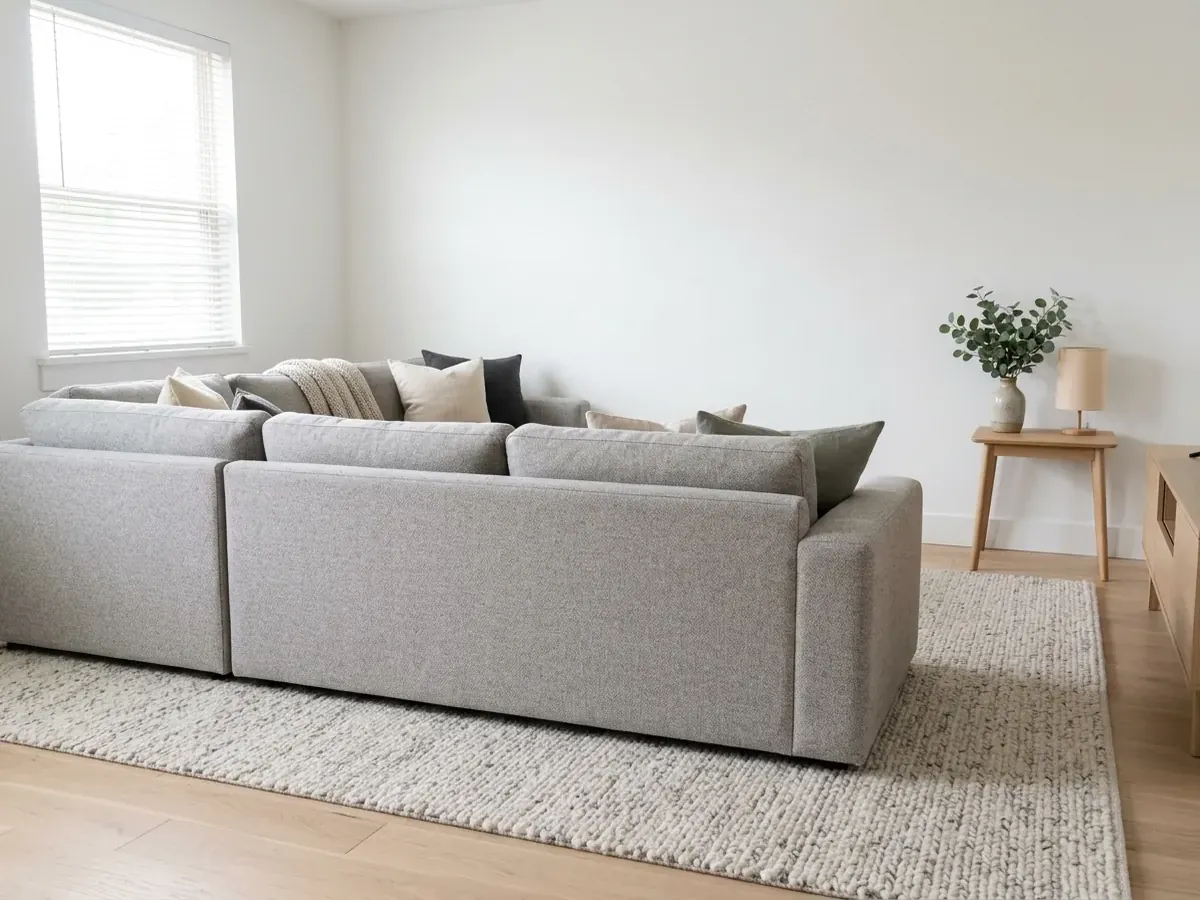
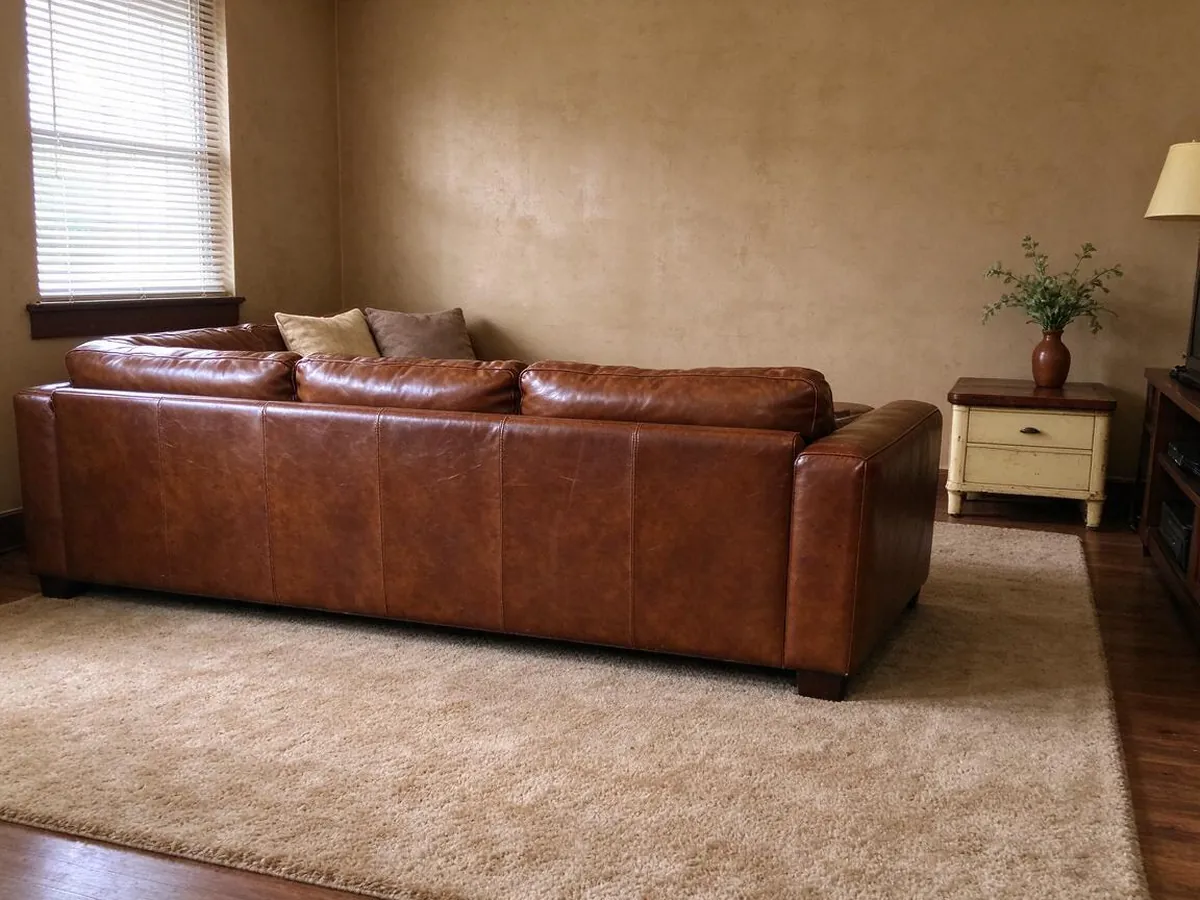
Scandinavian living room – AfterScandinavian living room – BeforeBeforeAfter
Scandinavian living room
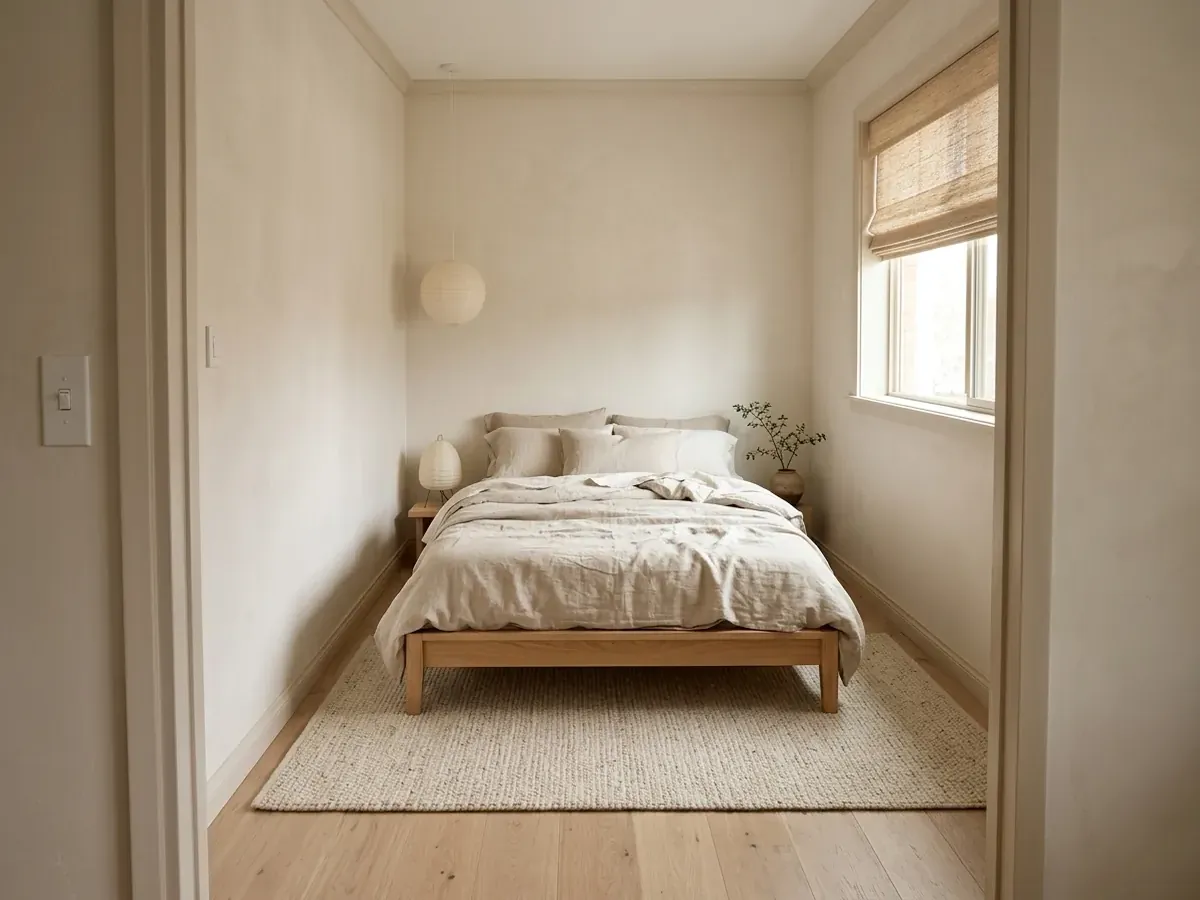
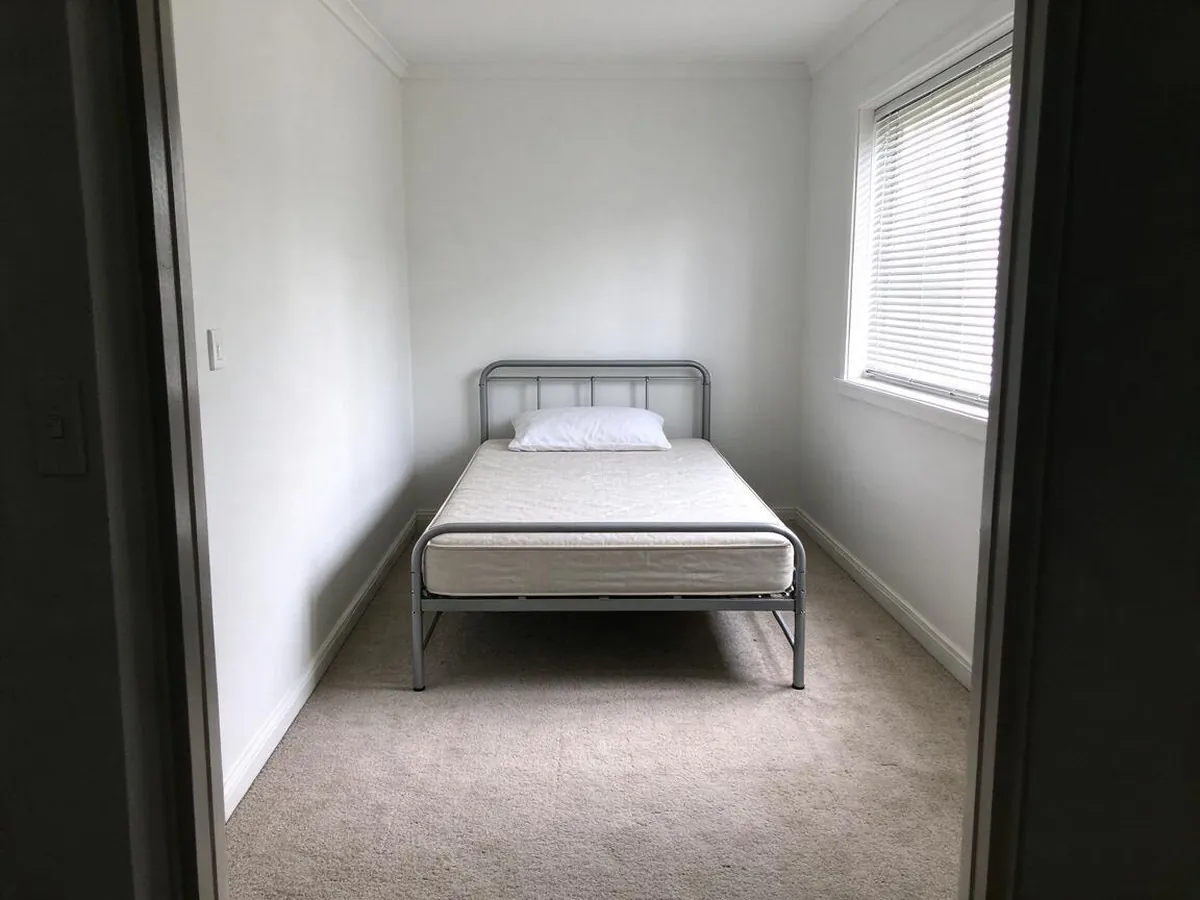
Japandi bedroom – AfterJapandi bedroom – BeforeBeforeAfter
Japandi bedroom
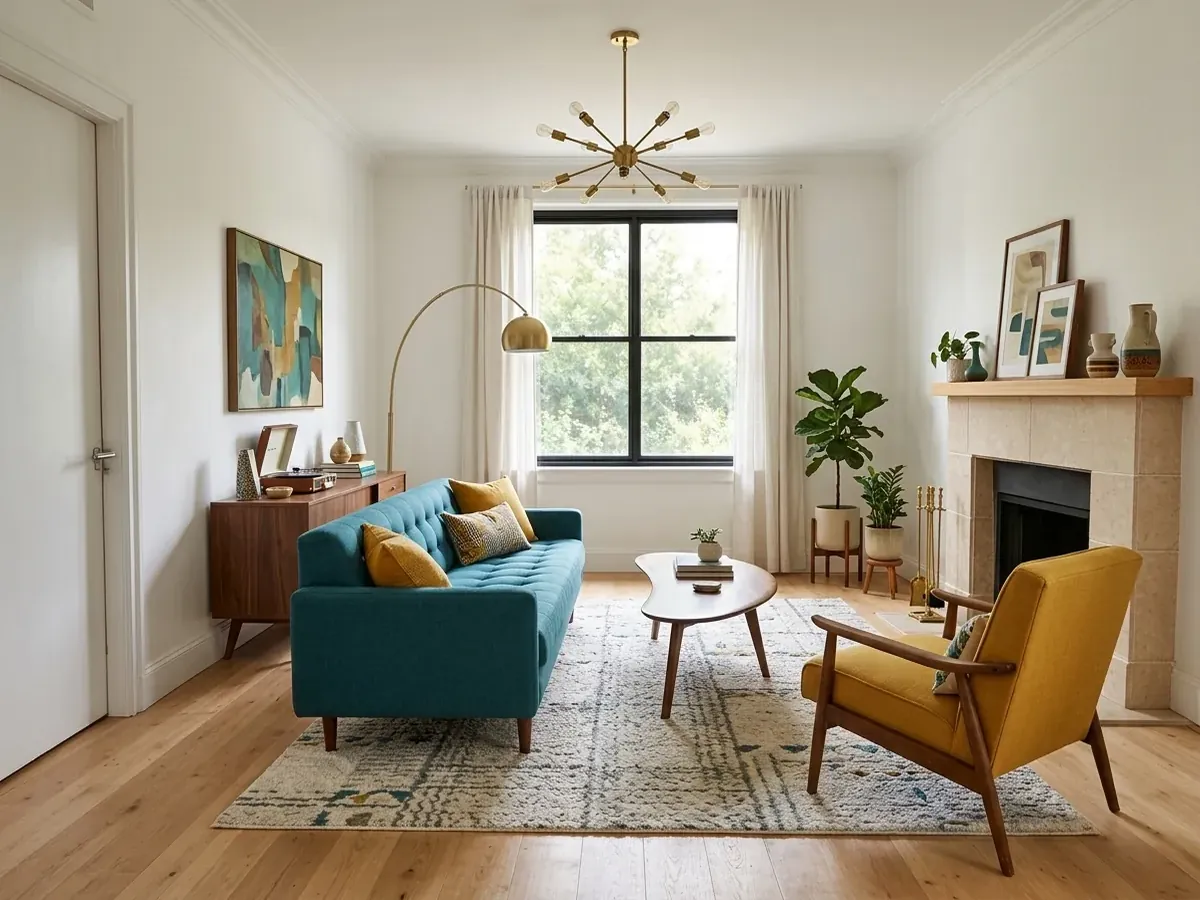
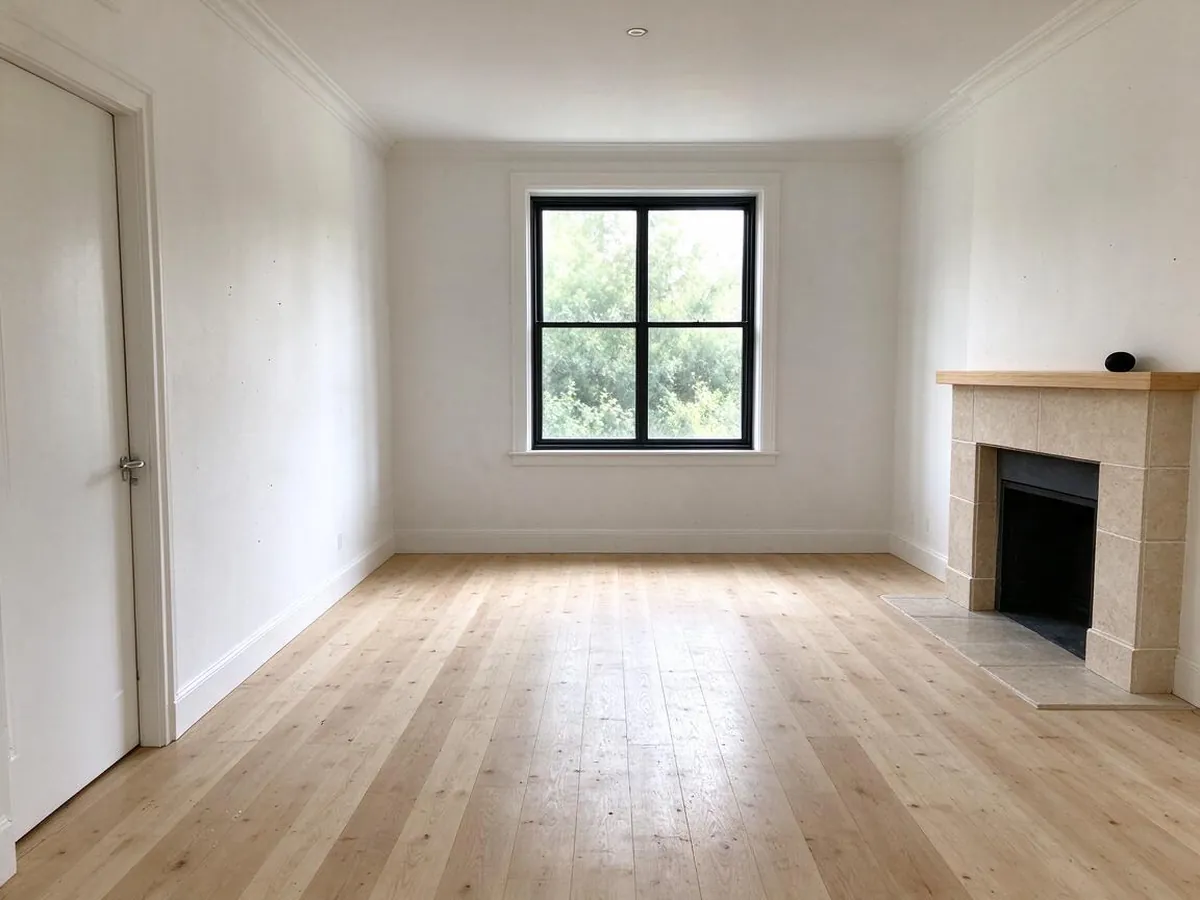
Mid-Century – AfterMid-Century – BeforeBeforeAfter
Mid-Century
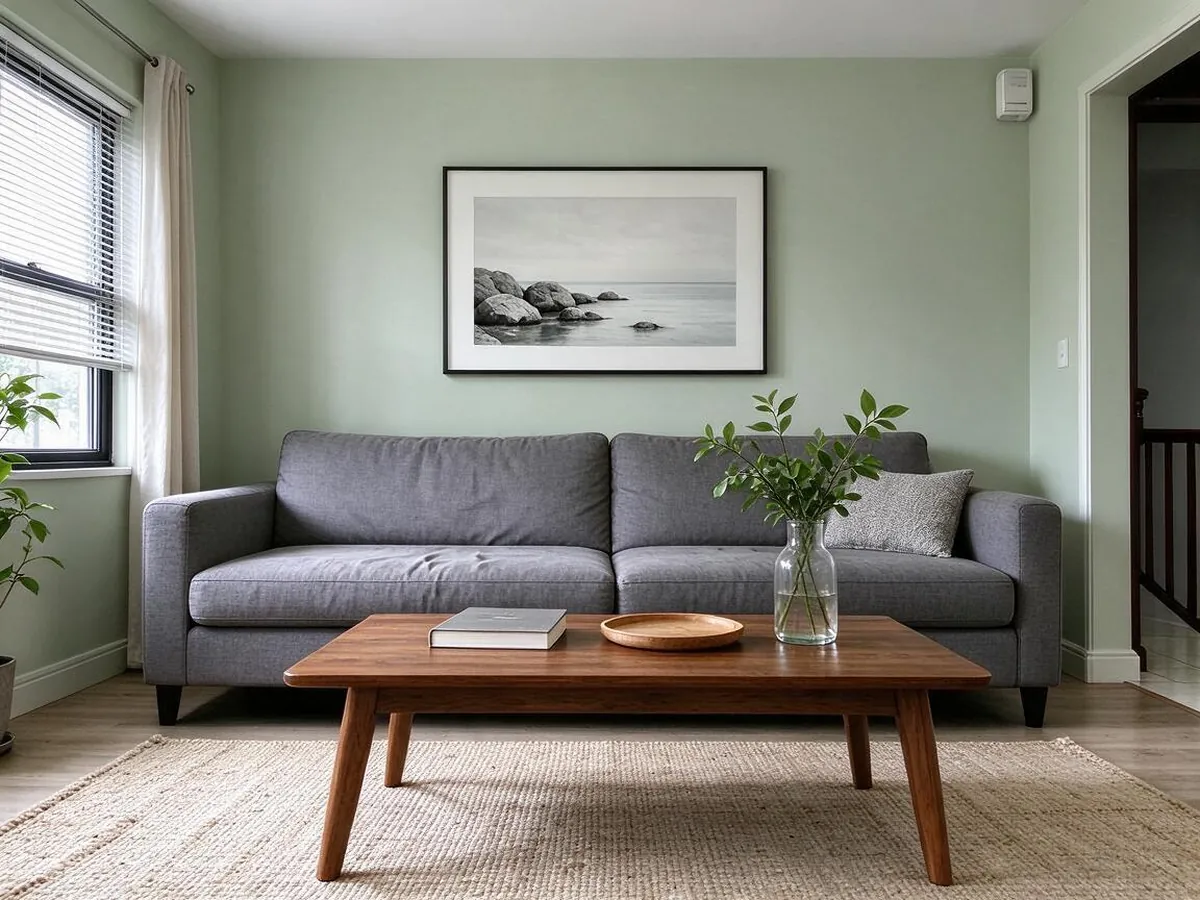
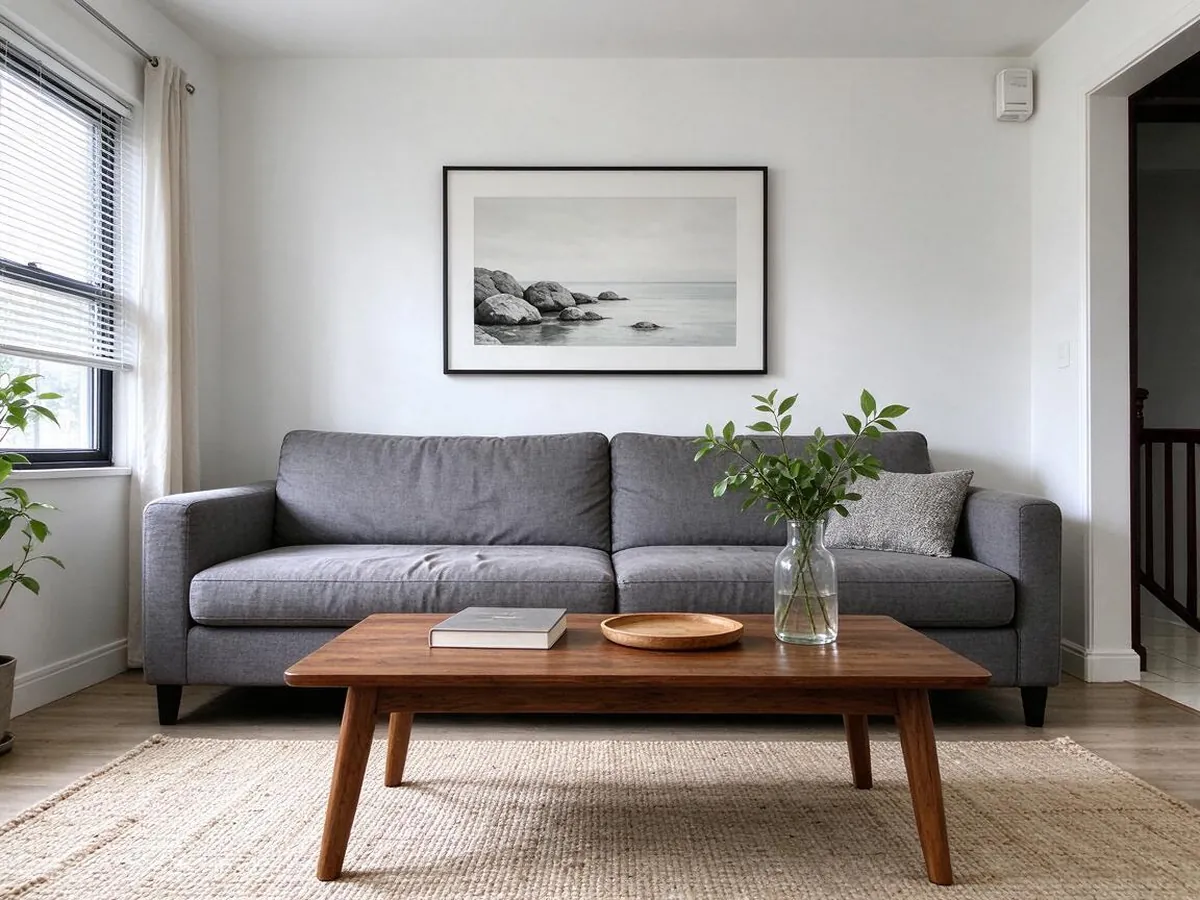
Sage green walls only – AfterSage green walls only – BeforeBeforeAfter
Sage green walls only

How to use it in 3 steps

  1. 1

    Upload your room

    Take a photo from a corner so you see two walls, the floor and a window if there is one.

  2. 2

    Choose a style

    Pick Scandinavian, Japandi, Mid-Century, Coastal and more, or set a wall color and floor yourself.

  3. 3

    Compare and refine

    Slide between before and after, then change one detail, such as just the wall color, until it feels like home.

What makes it different

  • Your layout stays put

    Walls, windows, doors and camera angle are kept. If the AI moves them, that image is refunded and redone.

  • Try before you sign up

    Your first two designs need no account and no card.

  • No subscription traps

    One-time packs never renew. Monthly plans cancel in one click.

  • Exact materials and colors

    Pick cabinets, counters, floors and paint, or change one thing at a time.

  • Ready for your contractor

    Download a before/after design card with your choices listed.

Restyle a room without moving a thing

Whether you just moved in, want a change, or are getting a room ready to sell, the hardest part is imagining a different look in the same space. AI room redesign starts from your photo and keeps the room itself: the size, the ceiling, the fireplace, the windows and doors. It changes what you can actually change: wall color, flooring, furniture, lighting, rugs, curtains and decor.

You get two versions every time, which helps you notice what you like. Maybe it is the warm wood in one and the lighter walls in the other. Combine them by editing one result, one detail at a time.

Styles for living rooms and bedrooms

Scandinavian: light wood, white walls, cozy textiles and plants. A safe, bright choice for most homes.

Japandi: low wood furniture, linen, paper lamps and warm neutrals. Great for bedrooms and calm reading corners.

Mid-Century: walnut with tapered legs, a tufted sofa, an arc lamp and mustard or teal accents.

Modern: a low sofa, sculptural lighting, a big rug and one bold color.

Industrial and Rustic Farmhouse: leather, metal and reclaimed wood, or slipcovers, woven baskets and vintage pieces.

Minimalist and Coastal: very few pieces and a lot of floor, or white-and-blue with rattan and linen.

The room stays the same shape

Many AI room tools quietly rebuild the room: windows move, ceilings rise, walls bend. Here each request keeps the original layout, walls, windows, doors and camera perspective. If a result breaks that, tap the link under the image for a refund and a stricter redo. What you see is a room you could get to with paint, flooring and furniture.

Try paint colors and floors before you commit

Painting a test square on the wall tells you little about the whole room. Choose "Change one thing", then "Wall color", and pick from popular shades like greige, sage green or navy, or choose any custom color. Do the same with floors to compare light oak, dark walnut or tile. Because the rest of the photo stays the same, the comparison is honest.

Taking a good room photo

Stand in a corner at chest height and hold the phone level, so the walls stay straight. Open the curtains, turn on the lamps, and clear the floor of laundry and toys. Rooms photographed with two walls and a window visible give the AI the clearest sense of space.

Who uses it, and what to expect

Homeowners and renters use it to plan a refresh. People selling a home use it to show buyers what an empty or dated room could become. Interior designers and agents use Studio for 2K images and a commercial license. Stagers use it to test furniture layouts before carrying anything.

Furniture and decor in the images are illustrations, not specific products with prices, and the AI does not measure your room. Use the design you like as a guide when you shop or brief a designer.

Frequently asked questions

Is this AI room redesign tool free?+

Yes, you can try it without paying or signing up. Your first try creates two redesigns of your own photo, marked with a small watermark. Sign in with Google and you get three more images free. After that, a one-time pack starts at $9.99 for 50 images and never expires, so you only pay when you actually have a project.

Which rooms does it work for?+

Living rooms, bedrooms, dens, home offices and dining areas all work. Choose "Living room" or "Bedroom" so the AI knows what furniture belongs in the space. Kitchens, bathrooms and yards have their own settings with options for cabinets, tile, fixtures and planting, so pick those for the best results.

Will it keep my layout, walls and windows?+

That is the whole point. Every request tells the AI to keep the original layout, walls, windows, doors and camera angle, and to change only surfaces, colors, fixtures and furniture. AI is not perfect, so we back it up: if a result moves a wall or window, tap "AI moved my walls or windows" under the image. We refund that image right away and redo it with stricter rules.

Can I change only the wall color or the floor?+

Yes. Choose "Change one thing", then "Wall color" or "Floor". Pick a preset or a custom color and the AI changes only that surface, leaving furniture, windows and lighting as they are. You can also start from a redesign you already made and keep changing single details until you are happy.

How is this different from asking ChatGPT or Gemini?+

General chat tools can edit photos, but you have to write long prompts and they often shift windows, change the camera angle or invent a different room. Here the layout rules are built in, styles and materials are one click, you get two options side by side with a before-and-after slider, and you can keep editing one detail at a time. If it does drift, you get the image back.

Can I use the images for my business?+

The Studio plan includes a commercial license, so designers, contractors and real estate agents can use the images in proposals, listings and marketing. Studio also unlocks sharp 2K downloads. Other plans are for personal use, such as planning your own remodel and sharing ideas with your family or your contractor.

Is my photo private?+

Your photos and designs are private to your account. Nobody else can see them unless you create a share link yourself, and you can delete any design from your history at any time. We use your photo only to create the images you ask for and never sell it or use it in public galleries. Please avoid uploading photos with people in them.