Change Only Kitchen Cabinets With AI (Before You Reface)
Preview new kitchen cabinets, counters, floors or wall color from one photo without redesigning the whole room. Free to try on AI Kitchen Redesign.
Quick answer: On AI Kitchen Redesign (aikitchenredesign.com), use “Change one thing” to update only cabinets, countertop, floor or wall color on your real kitchen photo—without restyling the entire room. That single edit uses 1 image credit (a full redesign uses 2). It’s a fast way to preview a cabinet reface or paint color before you spend on samples or contractors.
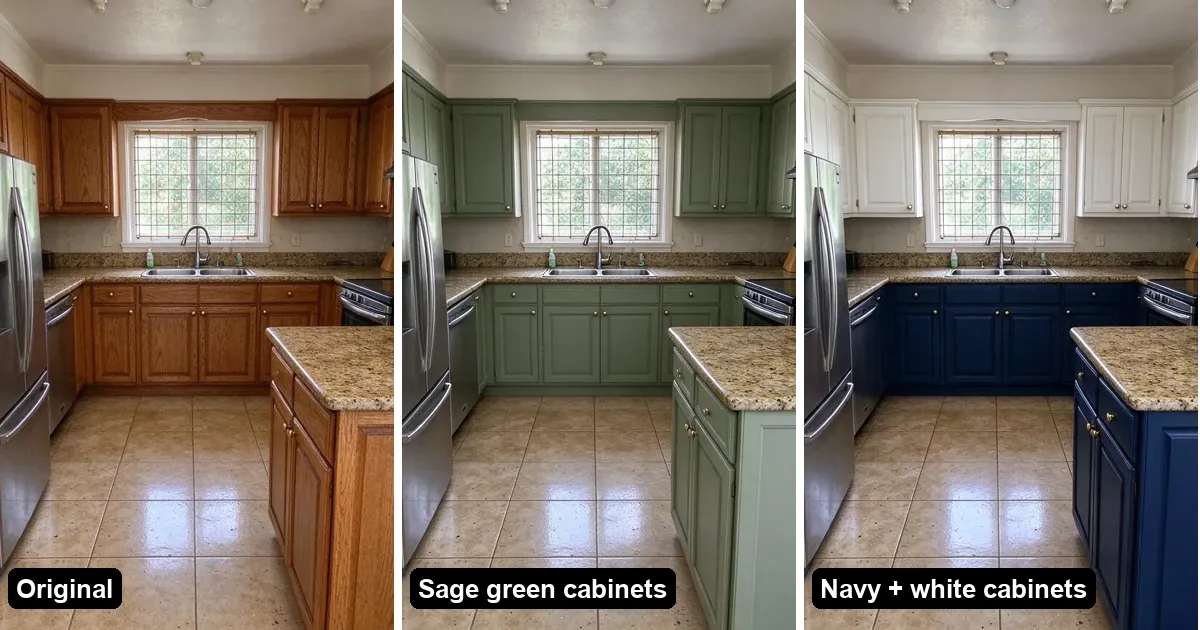
Why change only one area instead of a full AI redesign?
A full style pass (Modern, Japandi, Farmhouse, etc.) is great when you want inspiration. It can also change more than you meant—backsplash, lighting mood, stools, even small accessories.
Change one thing is better when you already like the room and only need to decide:
- Cabinet door style or color (reface vs full replace)
- Countertop material look (quartz, butcher block, marble-look)
- Floor finish
- Wall paint color
You keep the same photo, layout and camera angle, so family or a contractor can compare A vs B on the finish that actually costs money.
How do I change only the cabinets with AI?
Step 1: Upload your kitchen photo
Open AI Kitchen Redesign and upload a clear photo (JPG, PNG, WebP or iPhone HEIC). Show the full cabinet run and windows when possible.
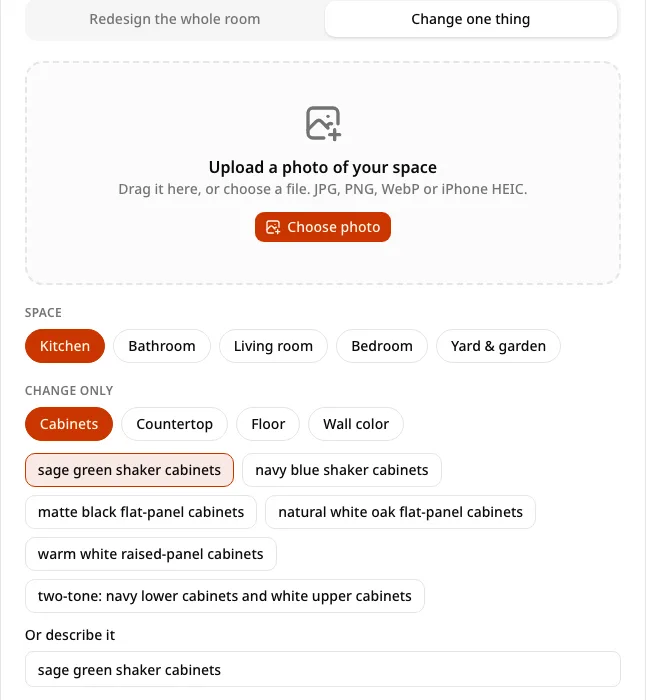
Step 2: Choose “Change one thing” → Cabinets
Select cabinets (or countertop, floor or wall color for other decisions). Optionally describe the finish you want—e.g. light oak shaker, matte black slab, classic white with soft-close look—using the materials/colors controls the product provides.
Step 3: Generate one image (~seconds)
Unlike a full redesign (two images / two credits), a one-area change costs 1 image. Drag the before/after slider to check that walls and windows stayed put.
Step 4: Iterate
Try two or three cabinet directions on the same photo. If layout drifts, use the “AI moved my walls or windows” claim for a refund and redo.
What else can I change one-at-a-time?
Per the product FAQ and homepage:
| Area | Good for |
|---|---|
| Cabinets | Reface vs replace; painted vs wood tone |
| Countertop | Comparing stone looks before ordering slabs |
| Floor | Vinyl plank vs tile vs wood tone in context |
| Wall color | Paint samples in your real lighting |
You can still run a full redesign afterward once the cabinet direction is settled.
Tips for better cabinet-only previews
- Shoot in daylight facing the main cabinet wall; avoid extreme wide-angle distortion.
- Open curtains so window positions are obvious to the layout-lock model.
- Clear clutter from counters if you want the AI to focus on the doors and hardware.
- One decision per generate—don’t expect one pass to also invent a new island footprint; that’s a different remodel question.
- Remember outputs are visual concepts, not shop drawings or hardware schedules.
Free trial and credits for one-area edits
- Free: 2 designs on first try (watermarked) without sign-up; +3 after Google—see Is AI Kitchen Redesign free?.
- Each “Change one thing” result = 1 image; a full redesign = 2.
- Paid images have no watermark; one-time packs never expire.
- Personal use on Free–Pro; Studio for commercial proposals/listings.
When should I use a full redesign instead?
Use a full style redesign when you’re open to a new overall look (lighting mood, backsplash, décor) or you’re comparing Scandinavian vs Farmhouse for the whole kitchen. Use Change one thing when the budget question is literally “cabinet color A or B?” For the full photo workflow, see How to remodel a kitchen from a photo with AI.
FAQ
Can AI change only my kitchen cabinets?
Yes. AI Kitchen Redesign’s “Change one thing” mode can target cabinets while aiming to keep layout, walls and windows.
Can I change only the countertop or floor?
Yes—countertop, floor and wall color are also one-area options.
How many credits does a cabinet-only change use?
One image per result. A full redesign uses two images and returns two options.
Will it move my windows?
It’s designed not to. If it does, claim the layout refund under the image for a redo.
Is this enough to order cabinets?
No. Use it as a visual preview, then measure and specify with a kitchen designer or cabinet supplier.