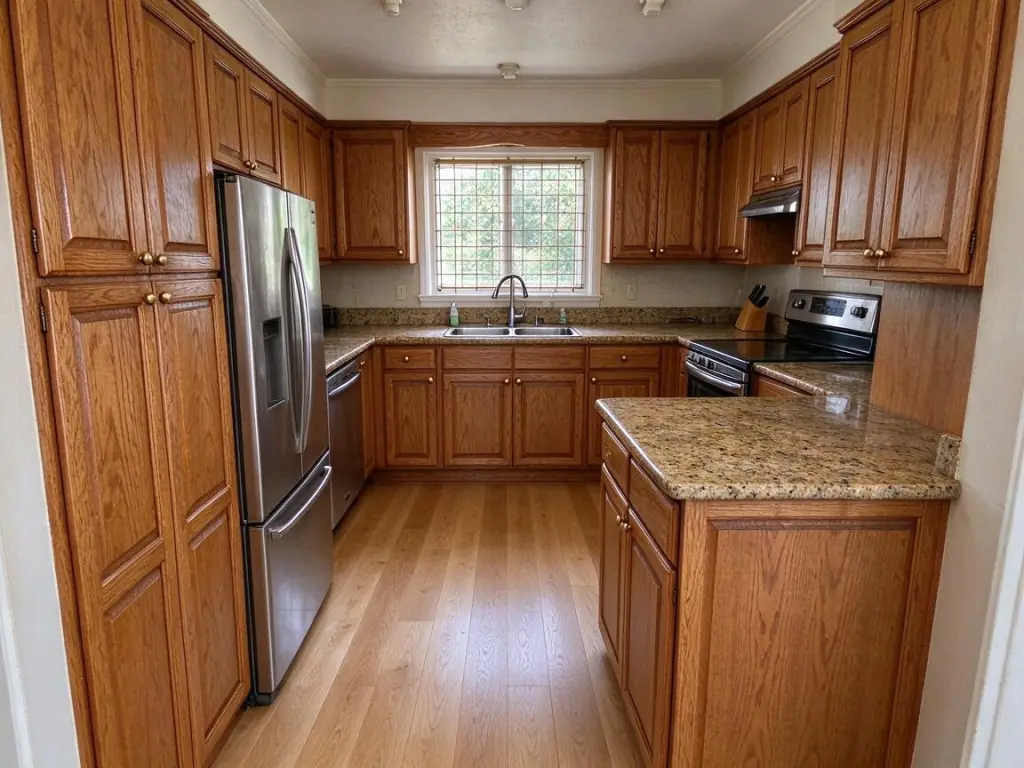
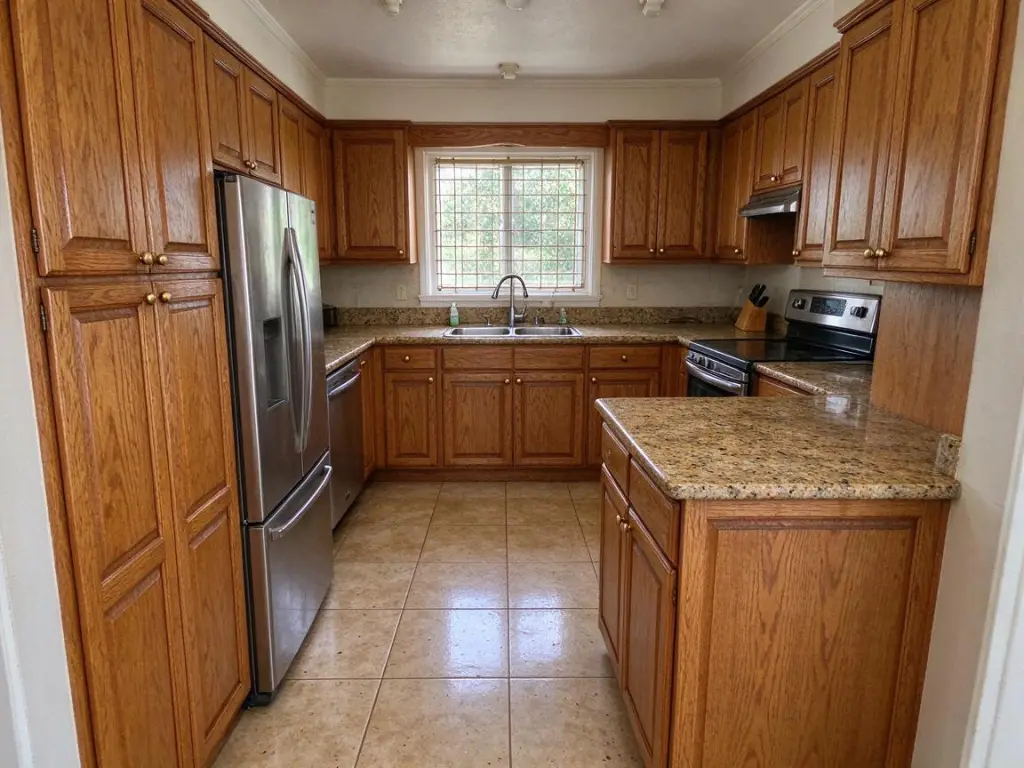
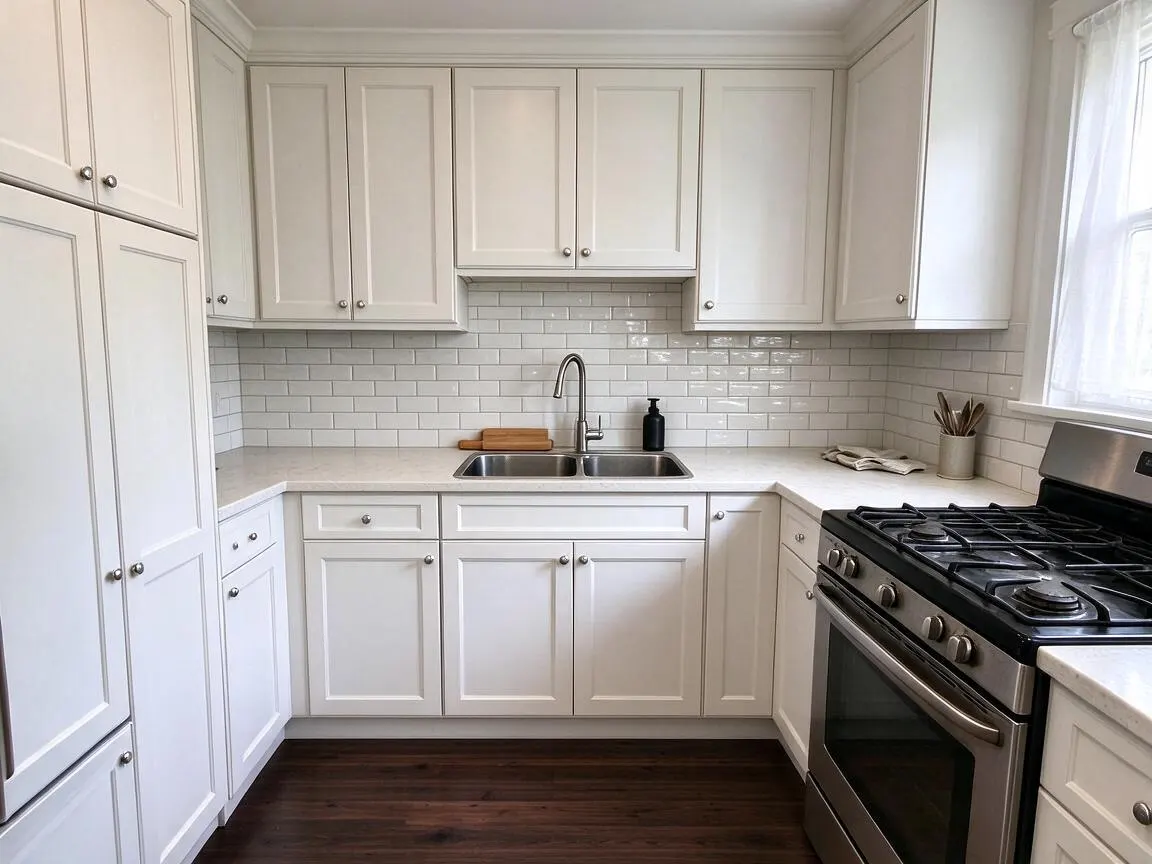
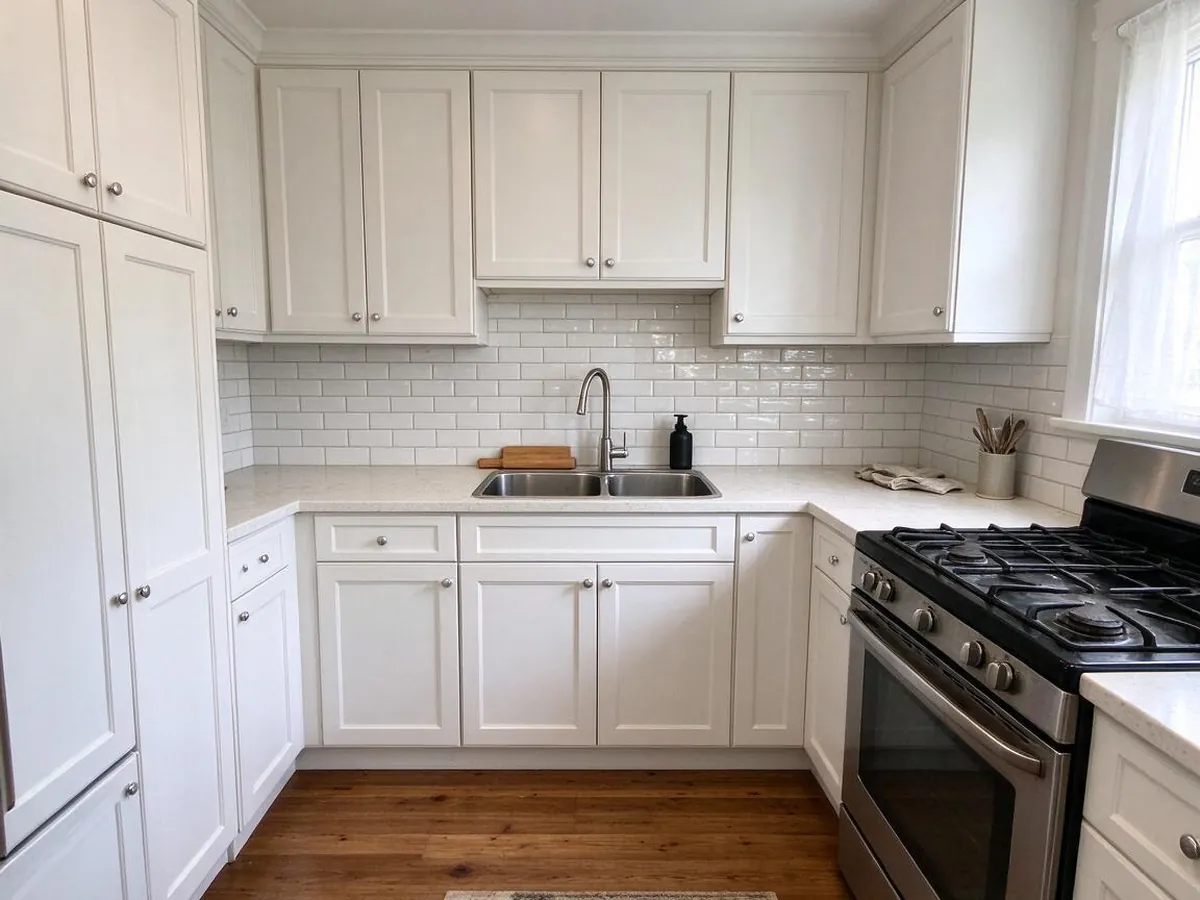
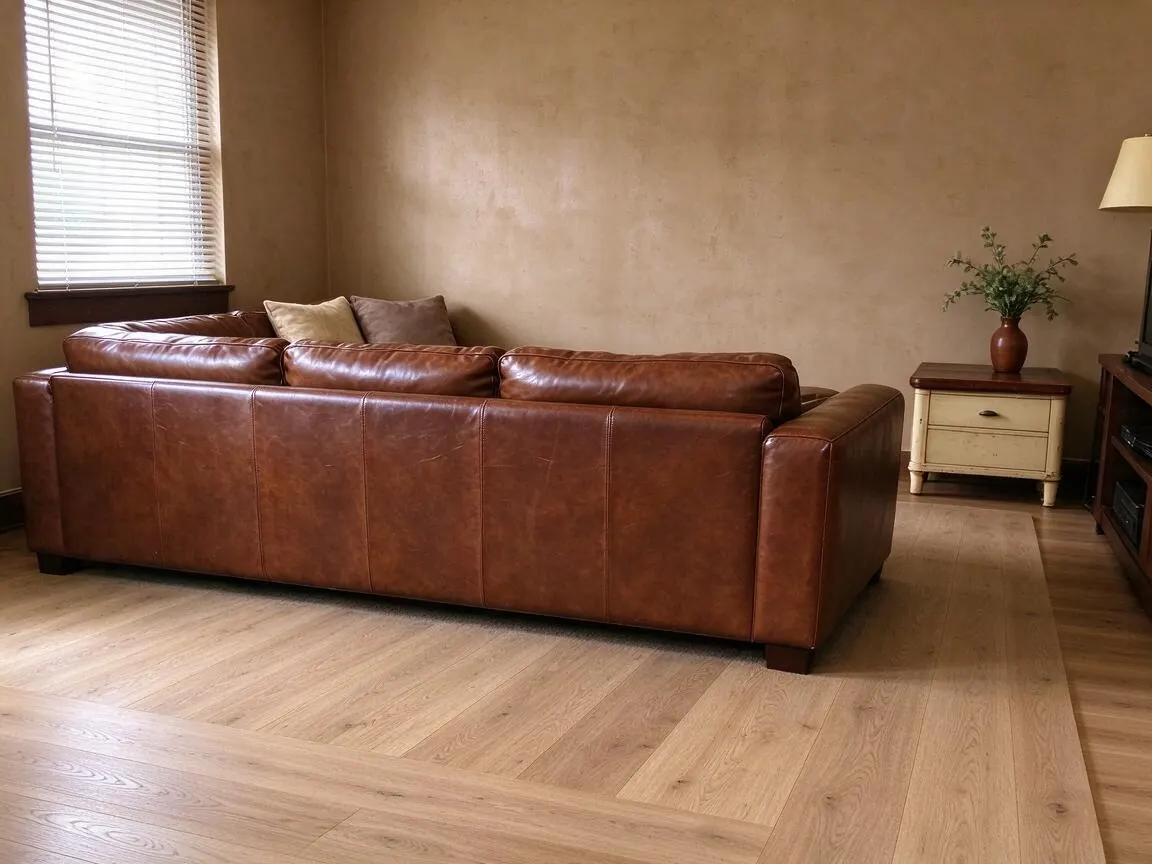
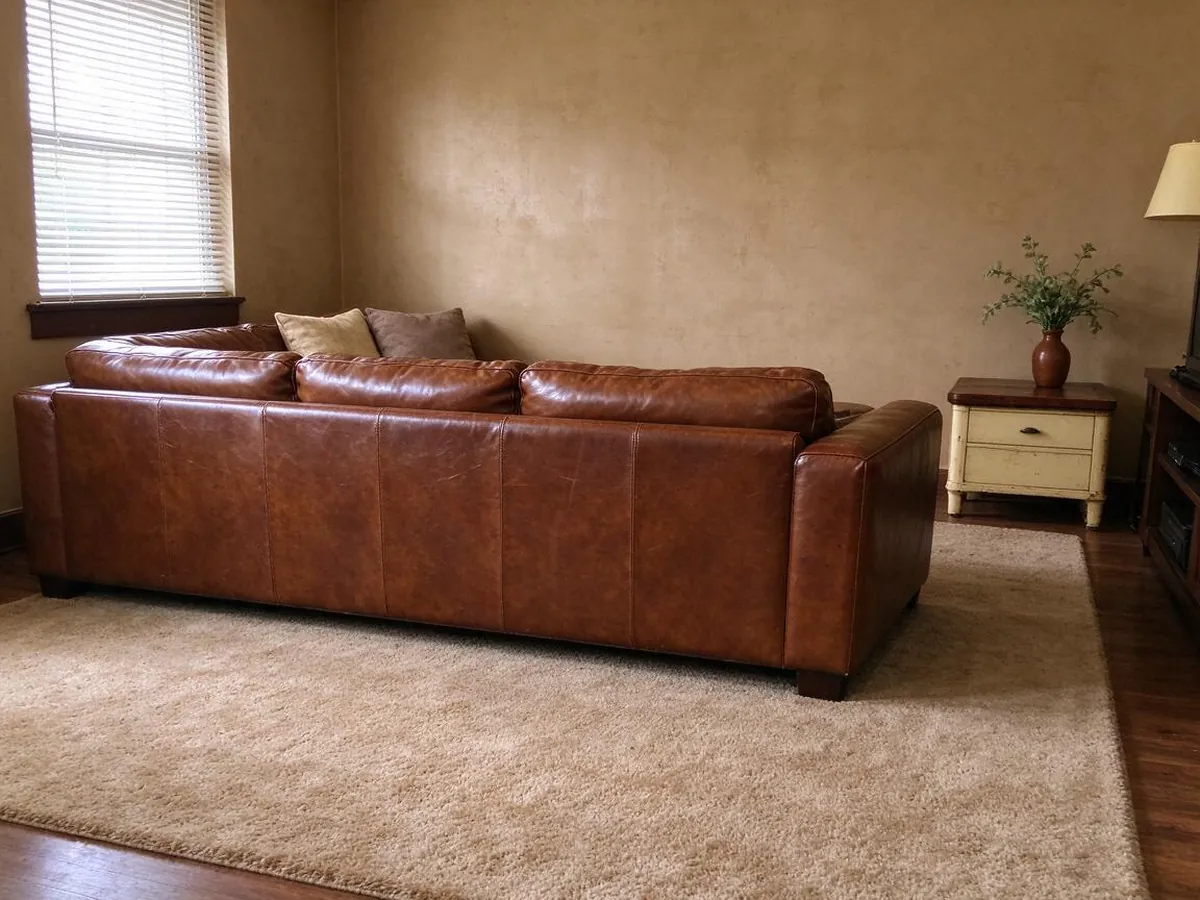
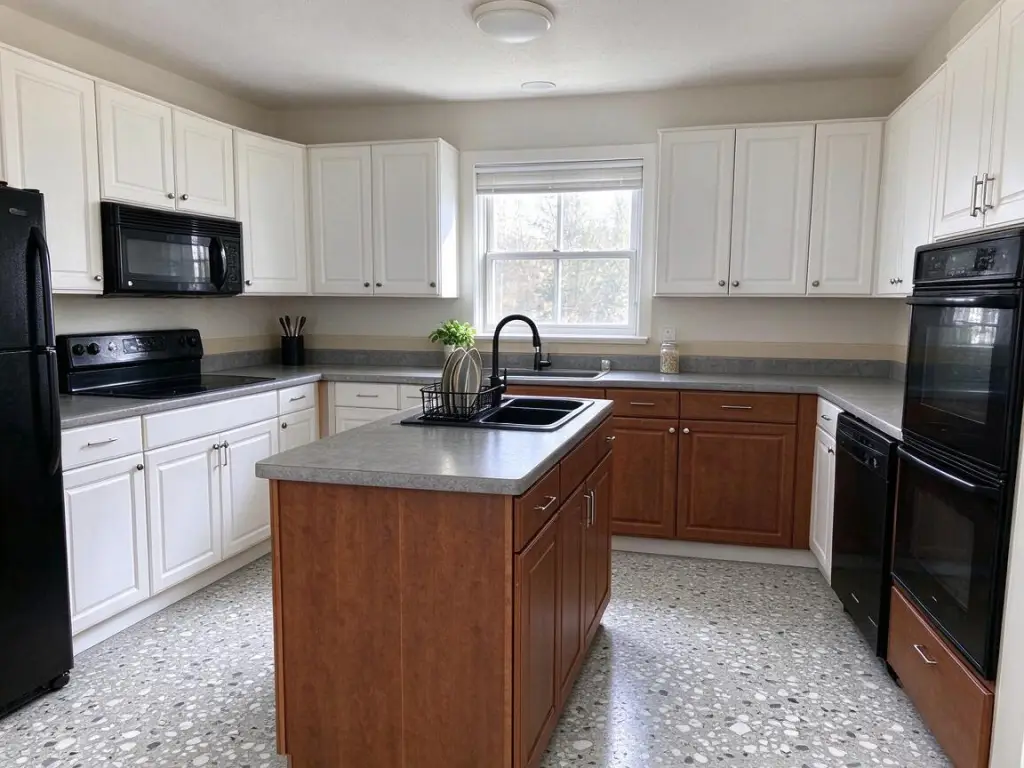
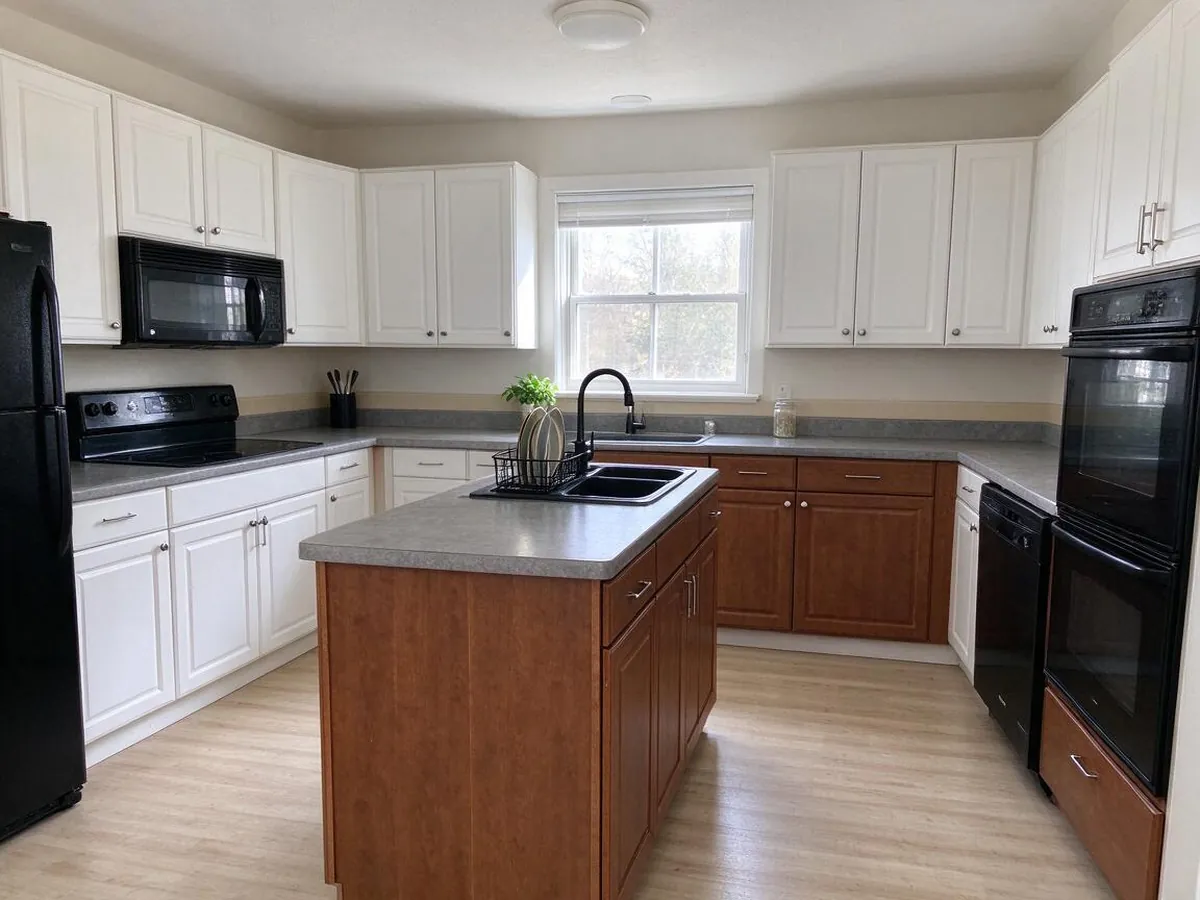
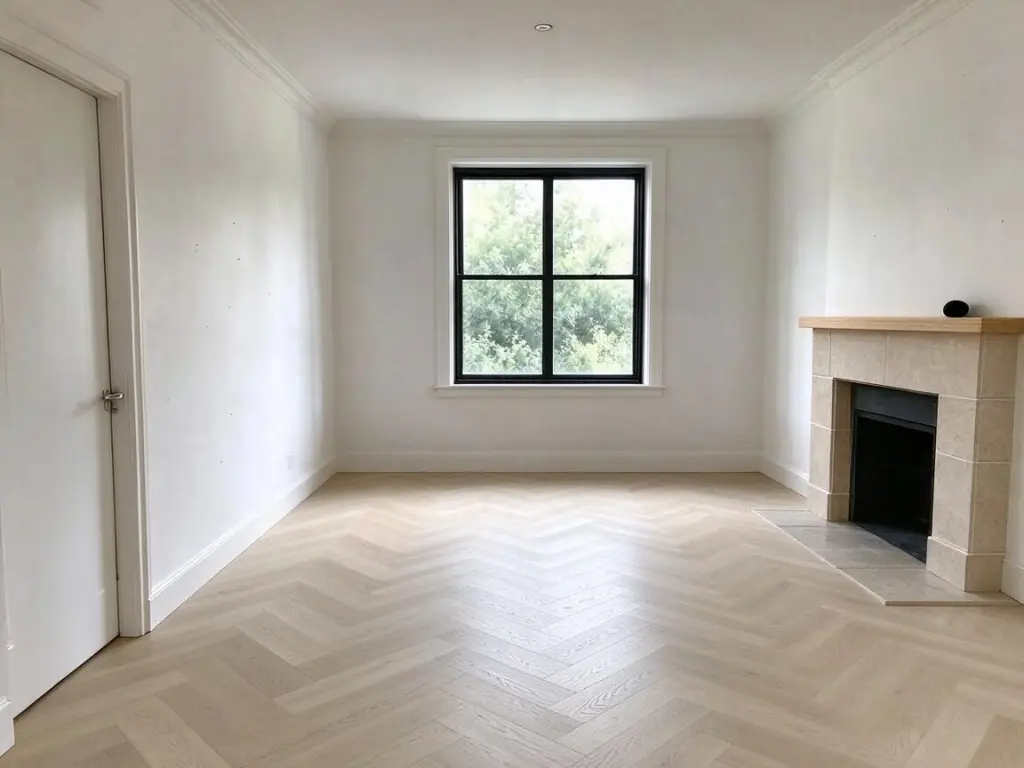
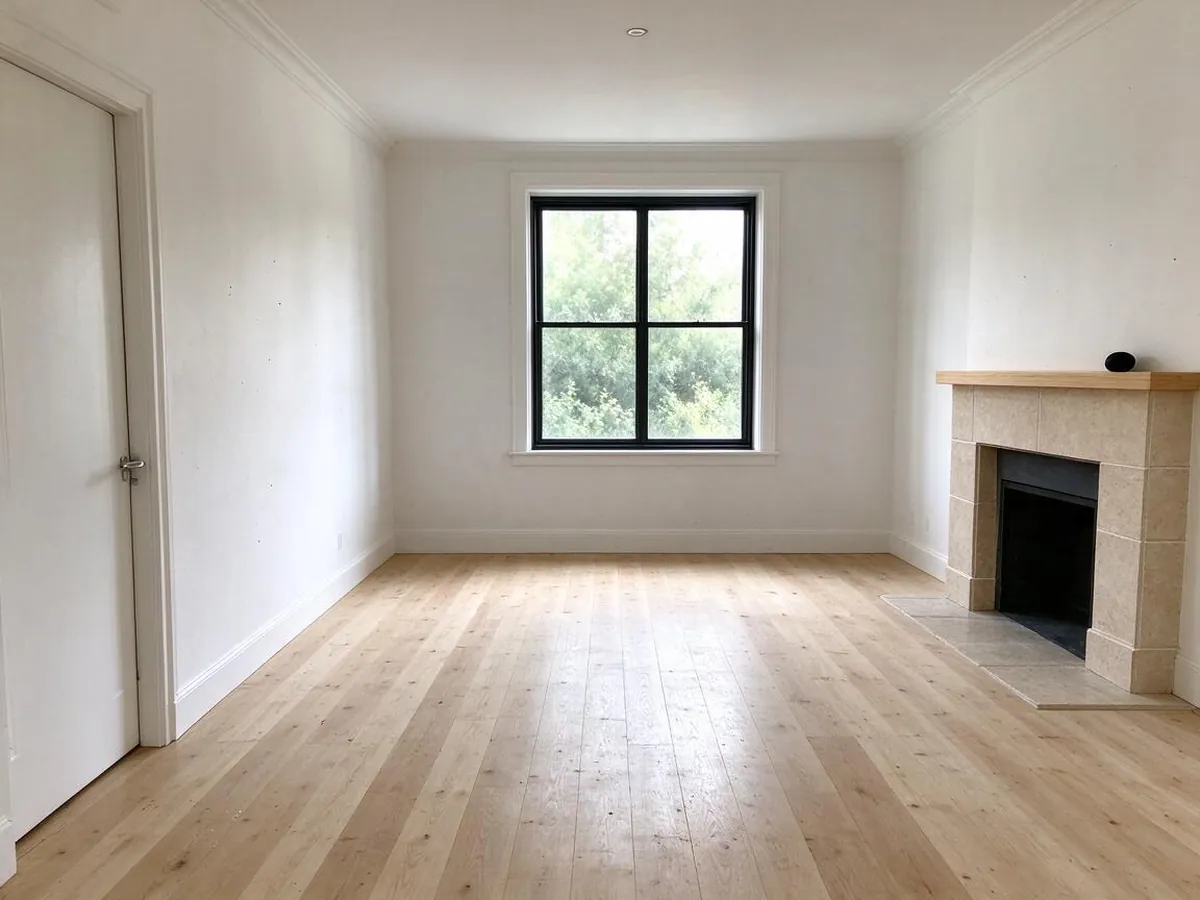
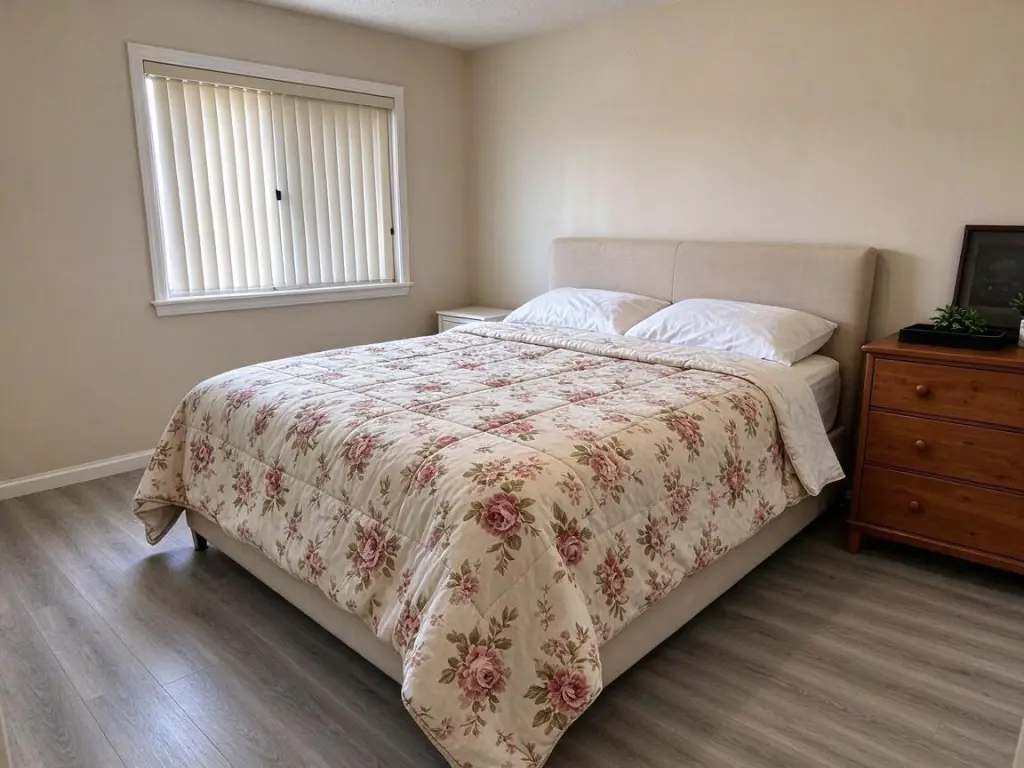
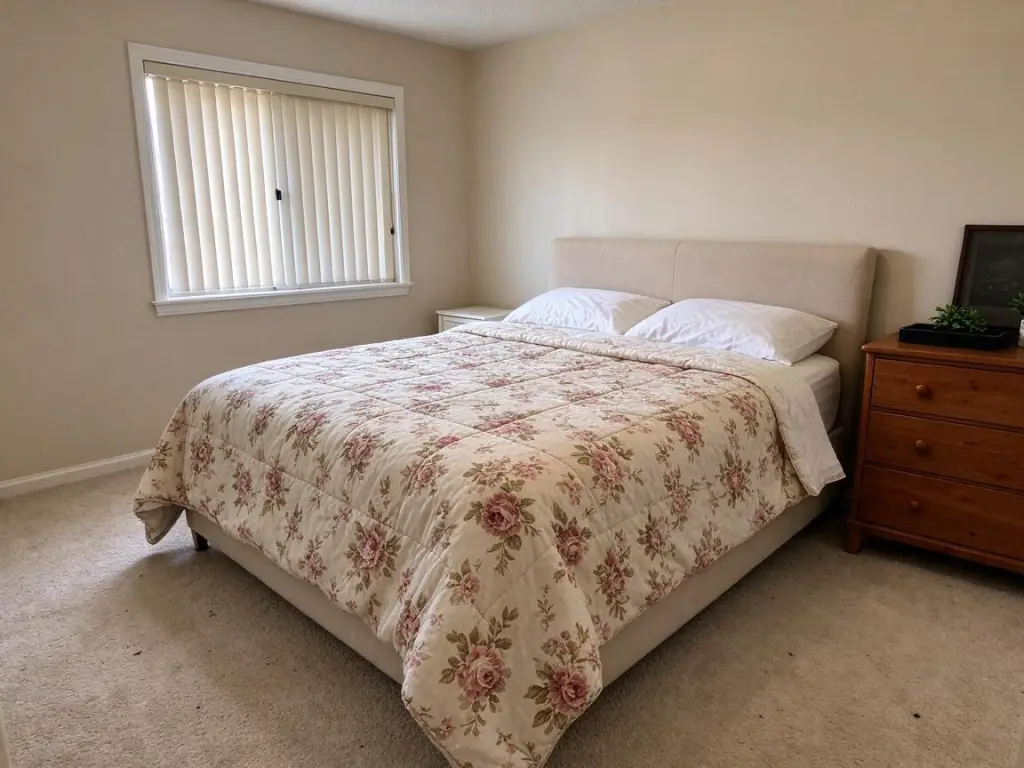
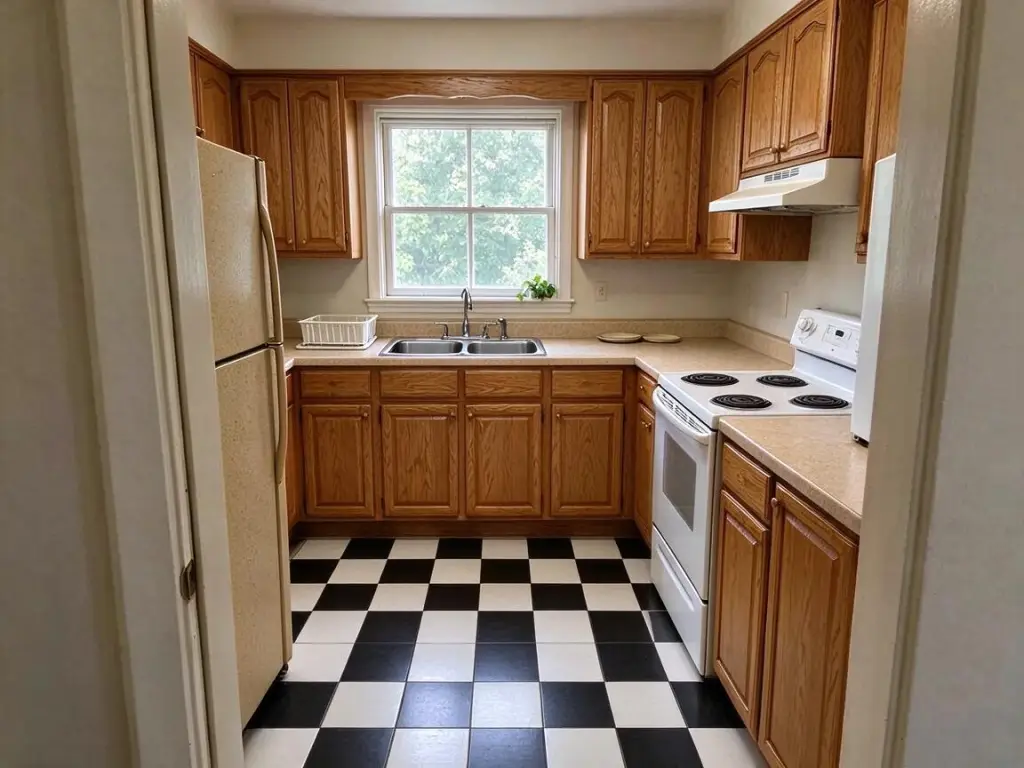
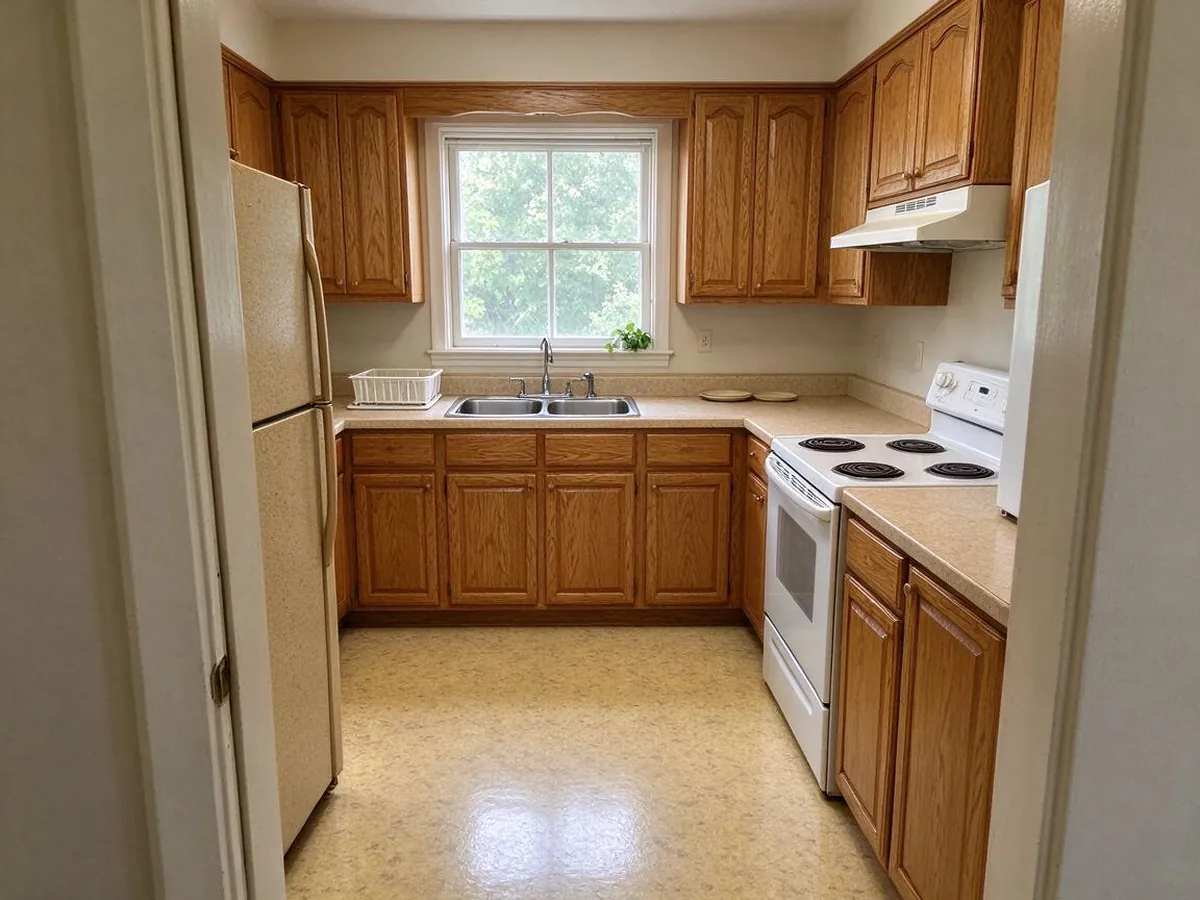
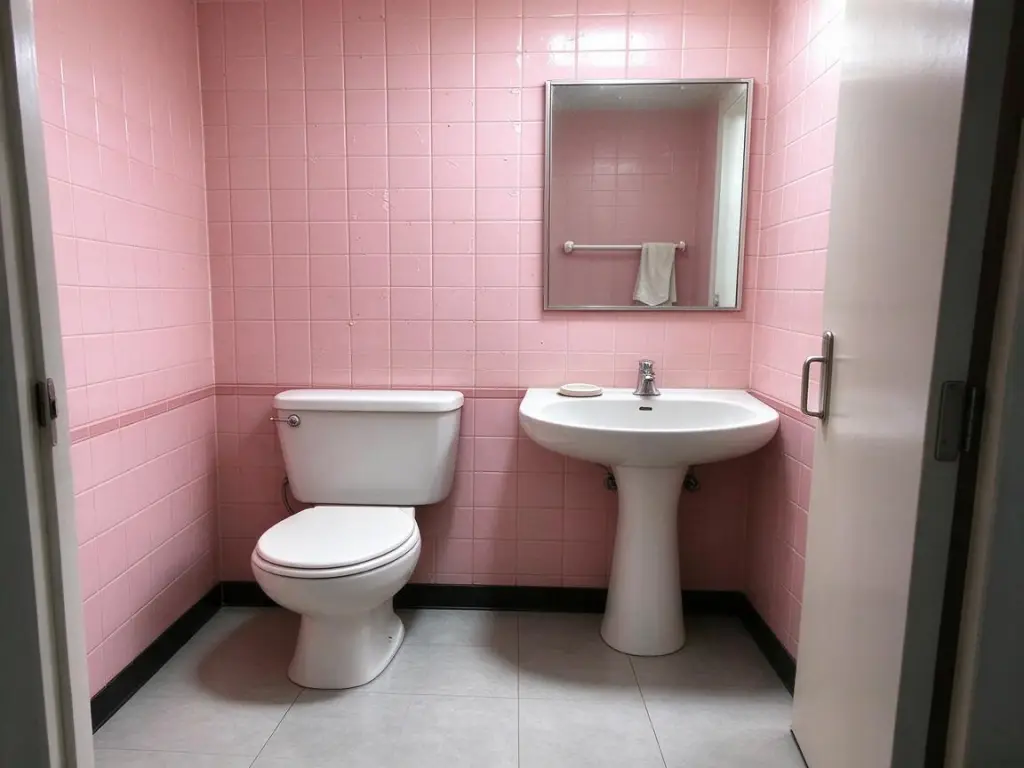
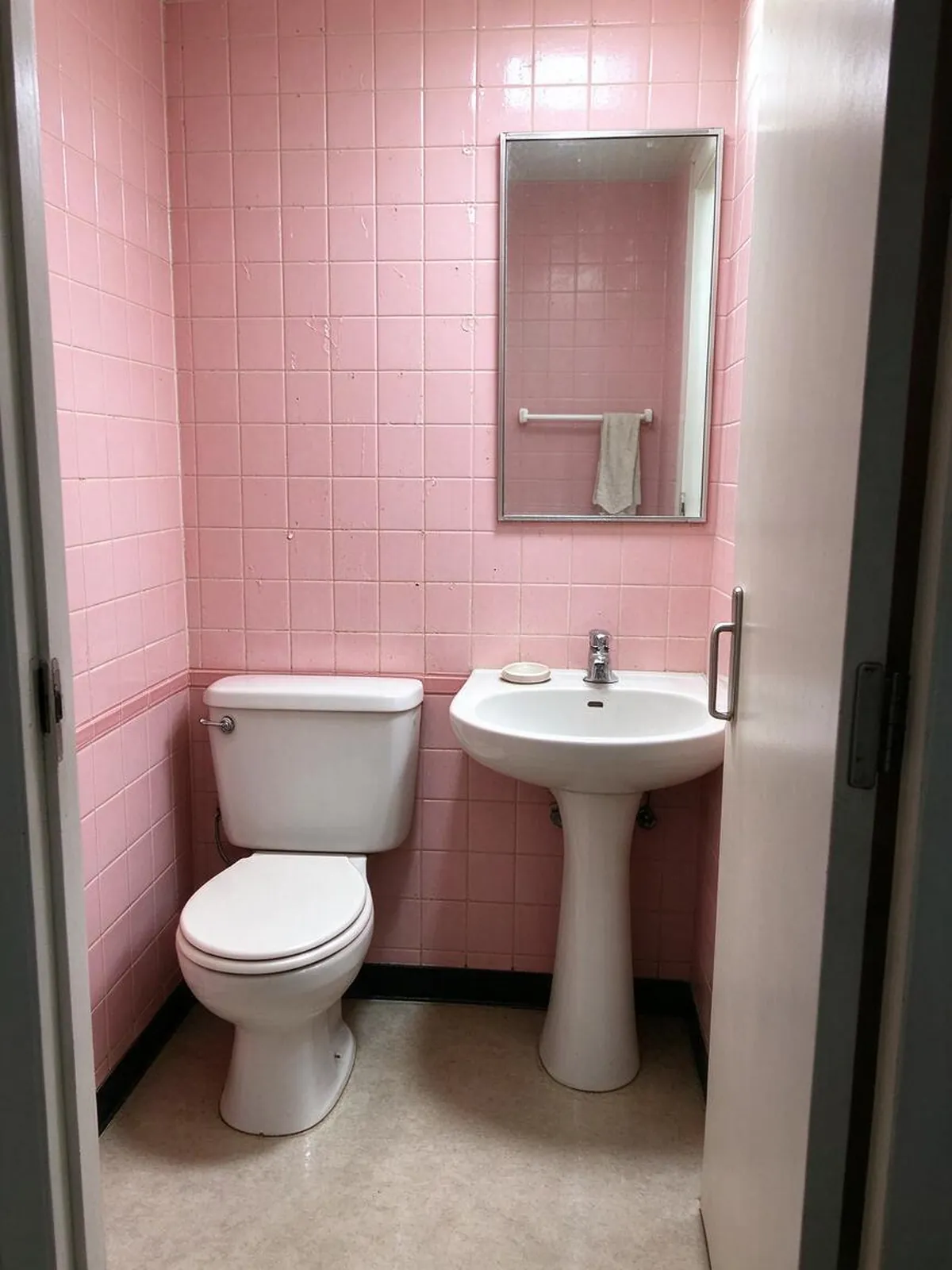
Quick answer: A flooring visualizer shows a new floor on a photo of your own room. On AI Kitchen Redesign the tool opens on "Change one thing → Floor": upload a photo of a kitchen, living room, bedroom or bathroom, pick wide-plank light oak, dark walnut, light gray porcelain tile, terrazzo or black-and-white checkerboard, and only the floor changes. Each preview uses one image, and the first one is free.
Why preview a floor before you buy?
Flooring covers the whole room, so a tone that looks right on a small sample can feel too dark or too busy at full size. More than half of U.S. homeowners renovated in 2024, at a median spend of $20,000, according to the 2025 U.S. Houzz & Home Study [1].
Seeing the floor across your whole room first helps you pick a tone that works with your walls and furniture.
Which floors can I try?
Presets include wide-plank light oak, dark walnut hardwood, large-format light gray porcelain tile, terrazzo and black-and-white checkerboard tile. You can also describe a specific product look, such as "white oak herringbone" or "slate gray luxury vinyl plank".
Which rooms does it work for?
Kitchens, bathrooms, living rooms and bedrooms. Pick the room type first so the result fits the space, for example tile in a bathroom or wood in a bedroom.
How do I choose a floor color?
Start with what stays. If your cabinets or furniture are wood, pick a floor that is clearly lighter or darker so the two do not clash. Light floors make a small or dark room feel bigger; dark floors feel warm but show dust and scratches more.
Look at the undertone too: warm floors (honey, red or yellow tones) suit cream walls and brass, cool floors (gray or white-washed) suit white walls and black or chrome. Try two or three tones on the same photo and compare them side by side.
Which flooring material suits each room?
Kitchens and bathrooms get water and spills, so porcelain tile and luxury vinyl plank are common choices; real wood is possible in a kitchen but needs care near the sink. Living rooms and bedrooms are where hardwood, engineered wood and laminate are most often used.
Pattern matters as much as material. Herringbone and chevron add movement, wide planks look calm, and checkerboard or terrazzo make a statement. A visualizer is the quickest way to see whether a pattern is too busy for your room.
Shaw, MSI or an AI flooring visualizer?
Flooring brands and stores offer free room visualizers. Shaw Floors' "View in Your Room" starts from a Shaw product page and puts that floor into a sample room or a photo you upload; MSI's Multi-Surface Visualizer does the same with MSI tile and stone. They are the best way to see one exact product, but only from that brand.
An AI flooring visualizer is for the step before: you do not have a product yet and want to compare looks, such as light oak against dark walnut or herringbone against wide plank, on your own room photo. Narrow it down here, then find matching products and check them in the store's tool or with a real sample.
Tips for a realistic floor preview
Shoot from standing height with plenty of floor in view, move small rugs out of the way, and use daylight. Check a real sample before you order, because sheen and color vary with lighting. Once you like a floor, use the free flooring calculator to work out how many boxes to buy.
How do I use it? 3 simple steps
- 1
Upload a room photo
Stand back so a good area of the floor is visible, and turn on the lights.
- 2
Pick the room and a floor
Choose the room type, then a preset such as wide-plank light oak or terrazzo, or describe your own.
- 3
Compare in your own light
Slide between before and after, then try another floor on the same photo.
Frequently asked questions
Is this flooring visualizer tool free?
Yes, you can try it without paying. Sign in with Google and you get 3 free redesign images of your own photo, marked with a small watermark. No credit card is needed. It is one time and does not refresh every day. Beyond that, plans start at $14 a month for 25 images (or $144 a year), with no watermark, and you can cancel anytime from the billing page.
Is there a free floor visualizer tool for my own photo?
Yes. Upload a photo of your kitchen, living room, bedroom or bathroom and pick a floor such as light oak, dark walnut, porcelain tile or terrazzo. Only the floor changes, and your first preview is free after Google sign-in.
Can I see new flooring in my own room?
Yes. Upload a photo of your room and the floor is redrawn on it, with walls and furniture left as they are.
How many credits does one preview use?
Changing one material makes one image and uses one credit. A full style redesign makes two images and uses two. Sign in with Google and your first 3 images are free, with no credit card.
Will it keep my layout, walls and windows?
That is the whole point. Every request tells the AI to keep the original layout, walls, windows, doors and camera angle, and to change only surfaces, colors, fixtures and furniture. AI is not perfect, so we back it up: if a result moves a wall or window, tap "AI moved my walls or windows" under the image. We refund that image right away and redo it with stricter rules.
Is my photo private?
Your photos and designs are private to your account. Nobody else can see them unless you create a share link yourself, and you can delete any design from your history at any time. We use your photo only to create the images you ask for and never sell it or use it in public galleries. Please avoid uploading photos with people in them.