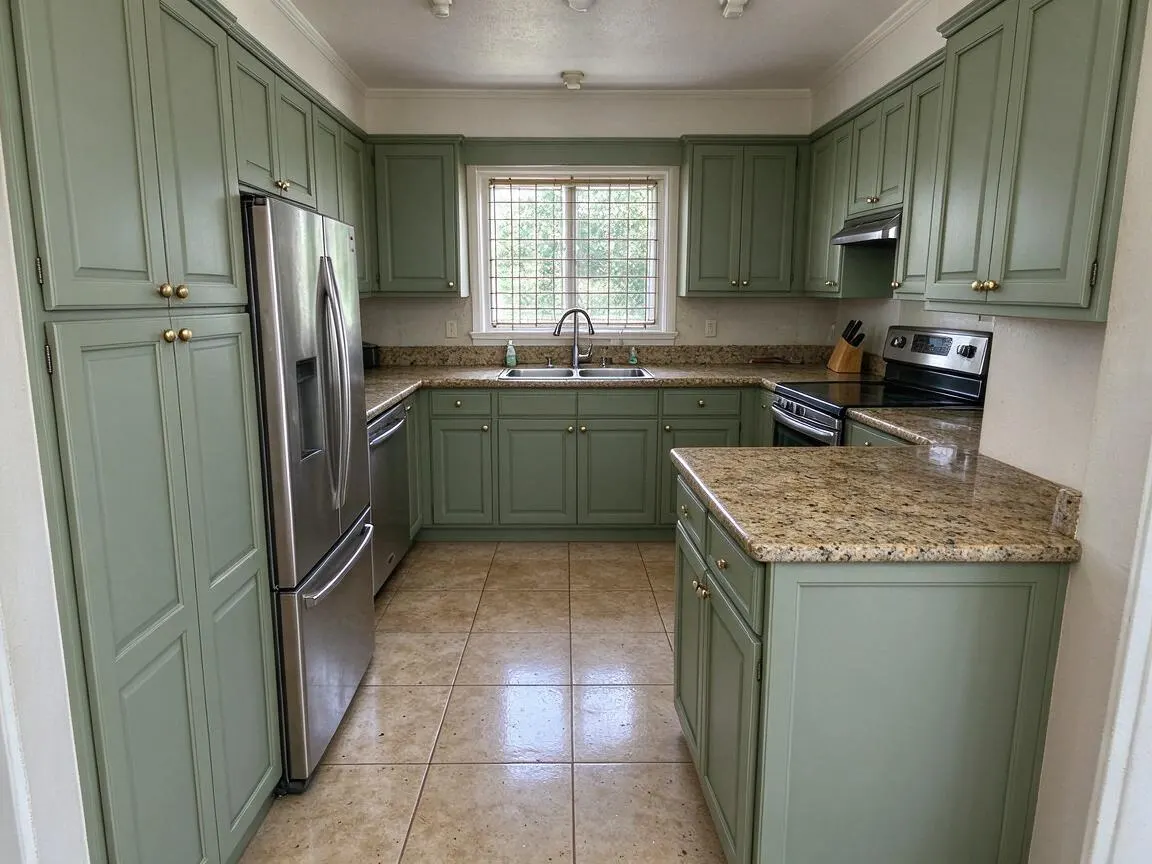
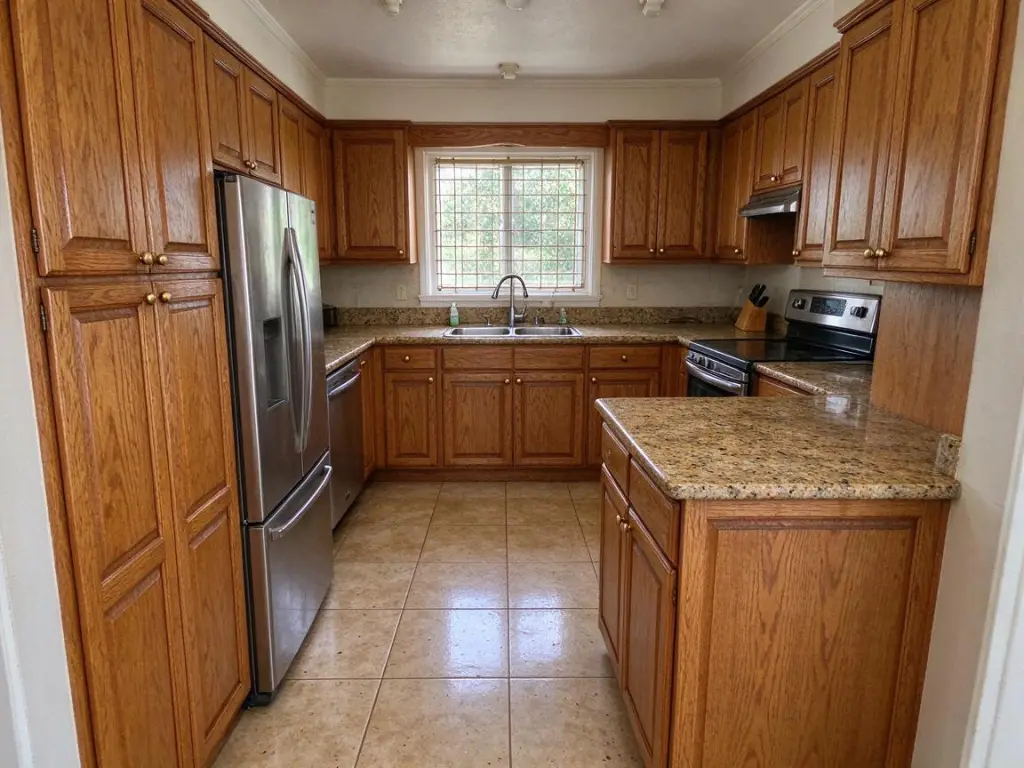
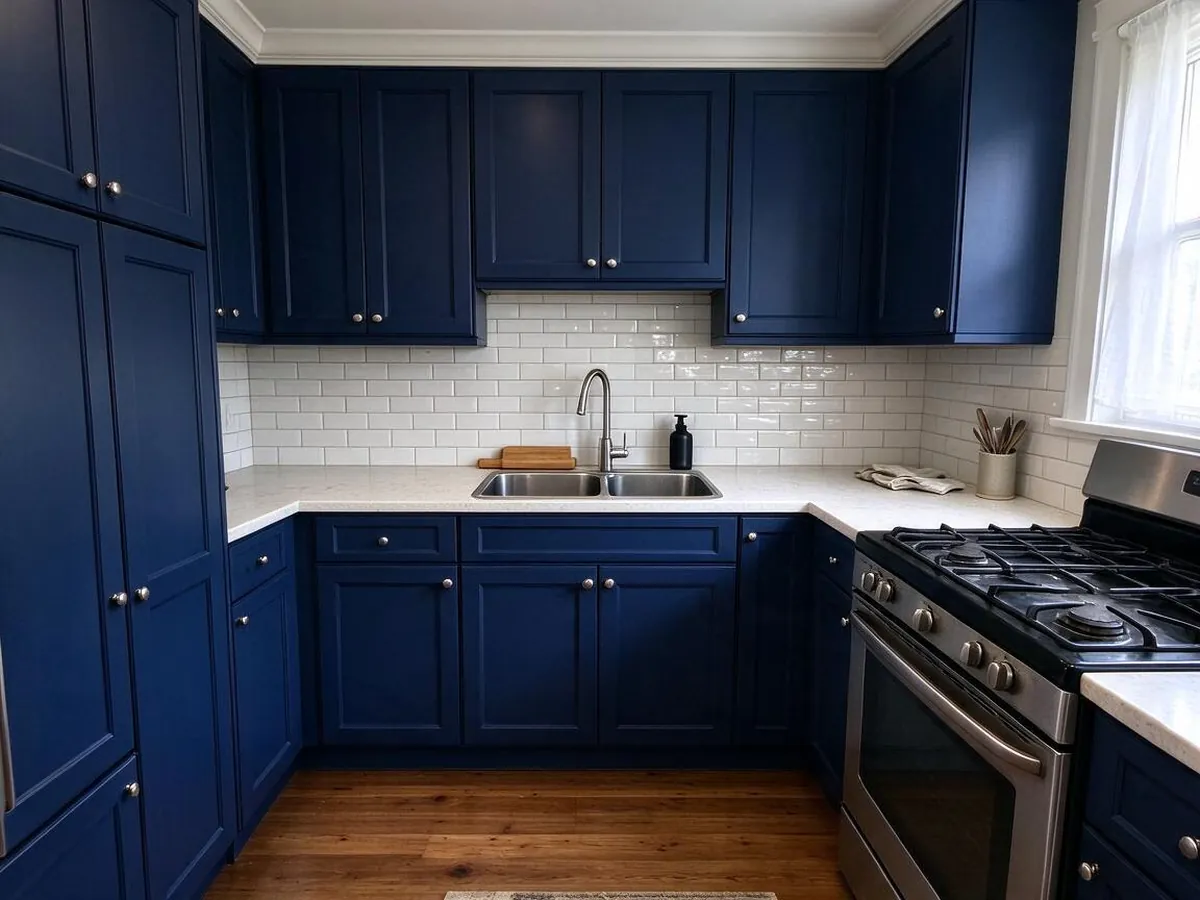
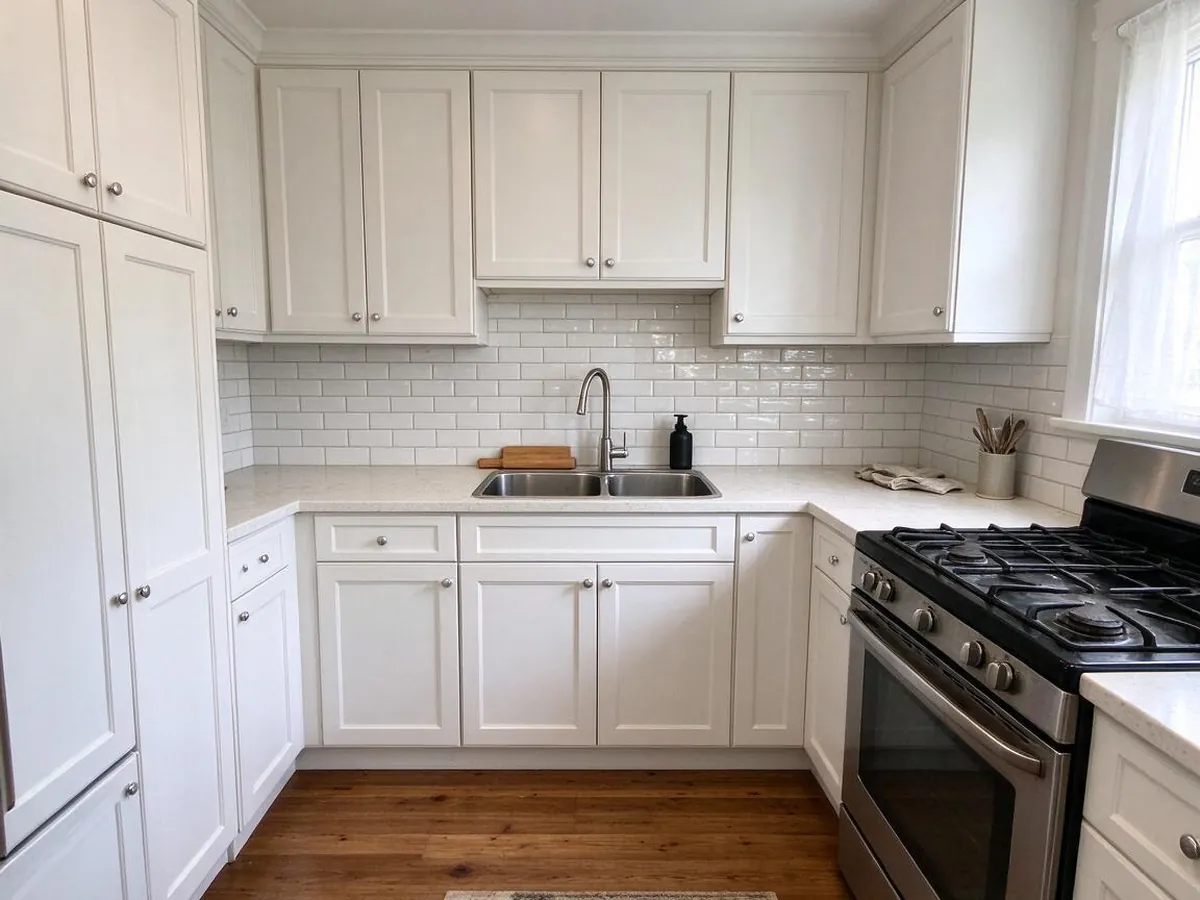
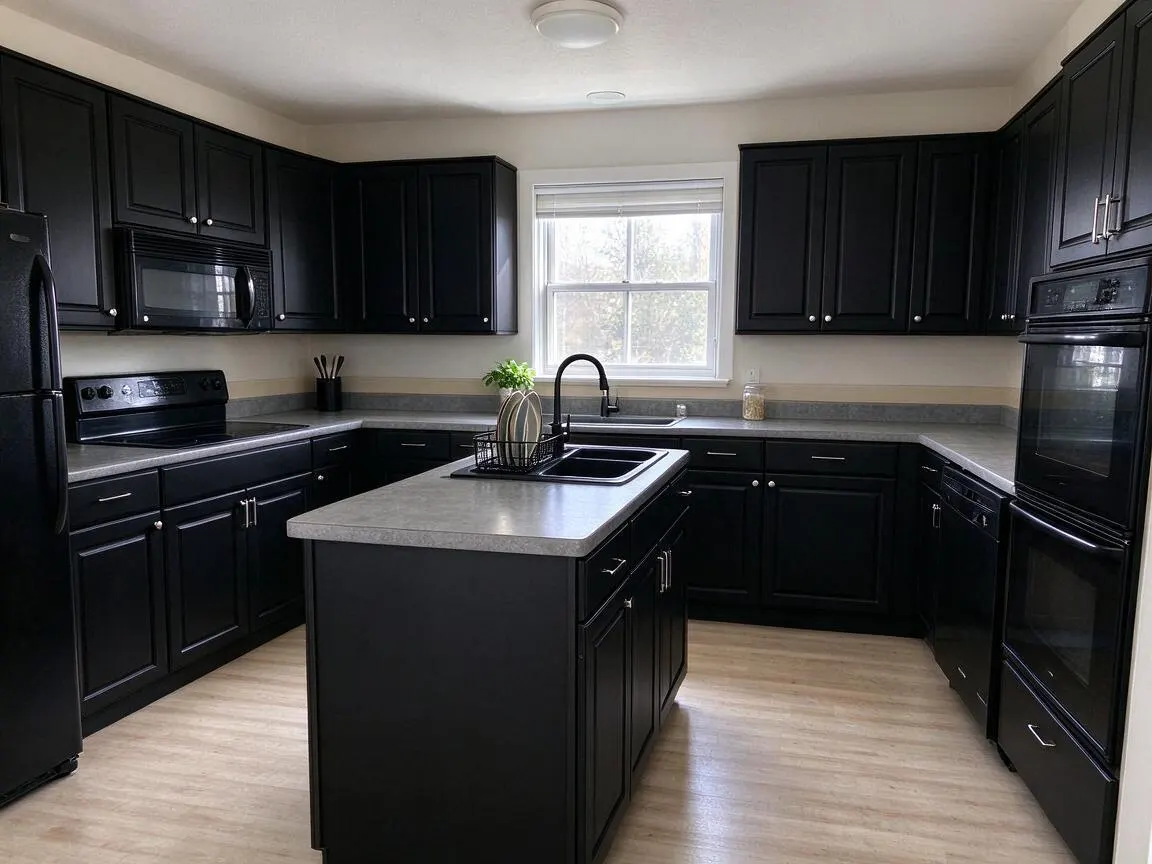
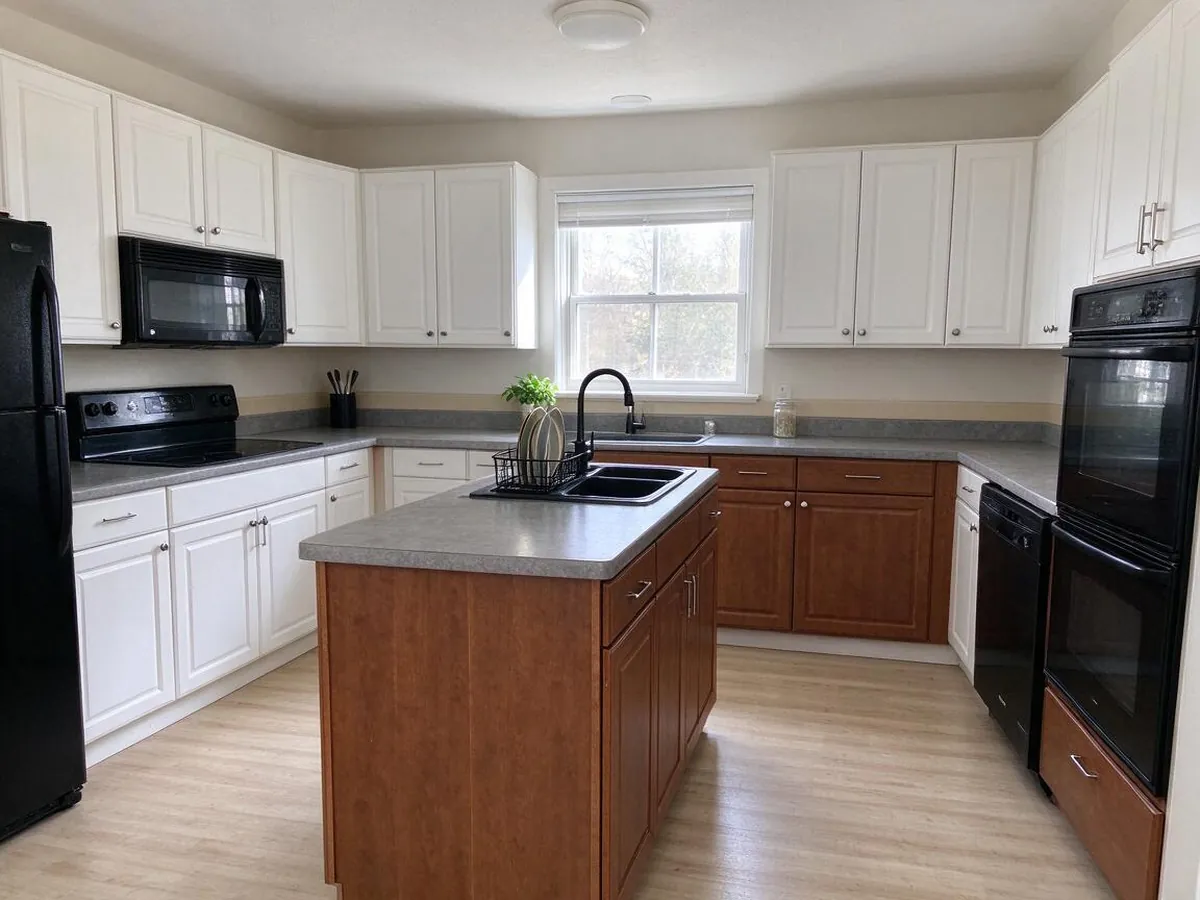
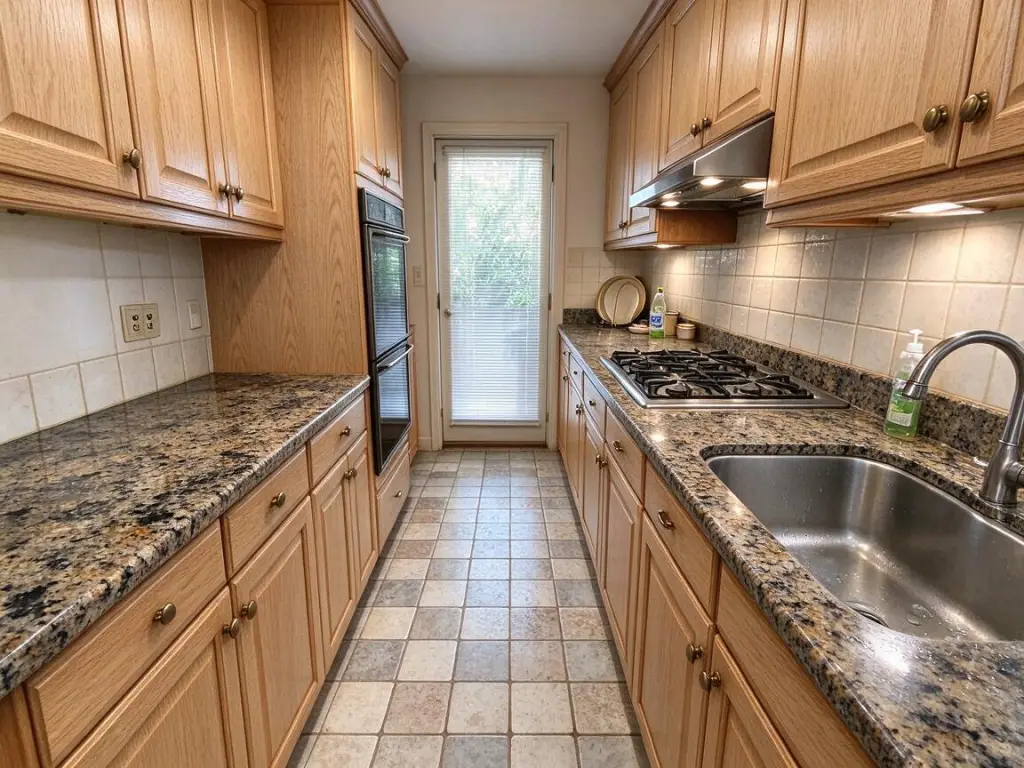
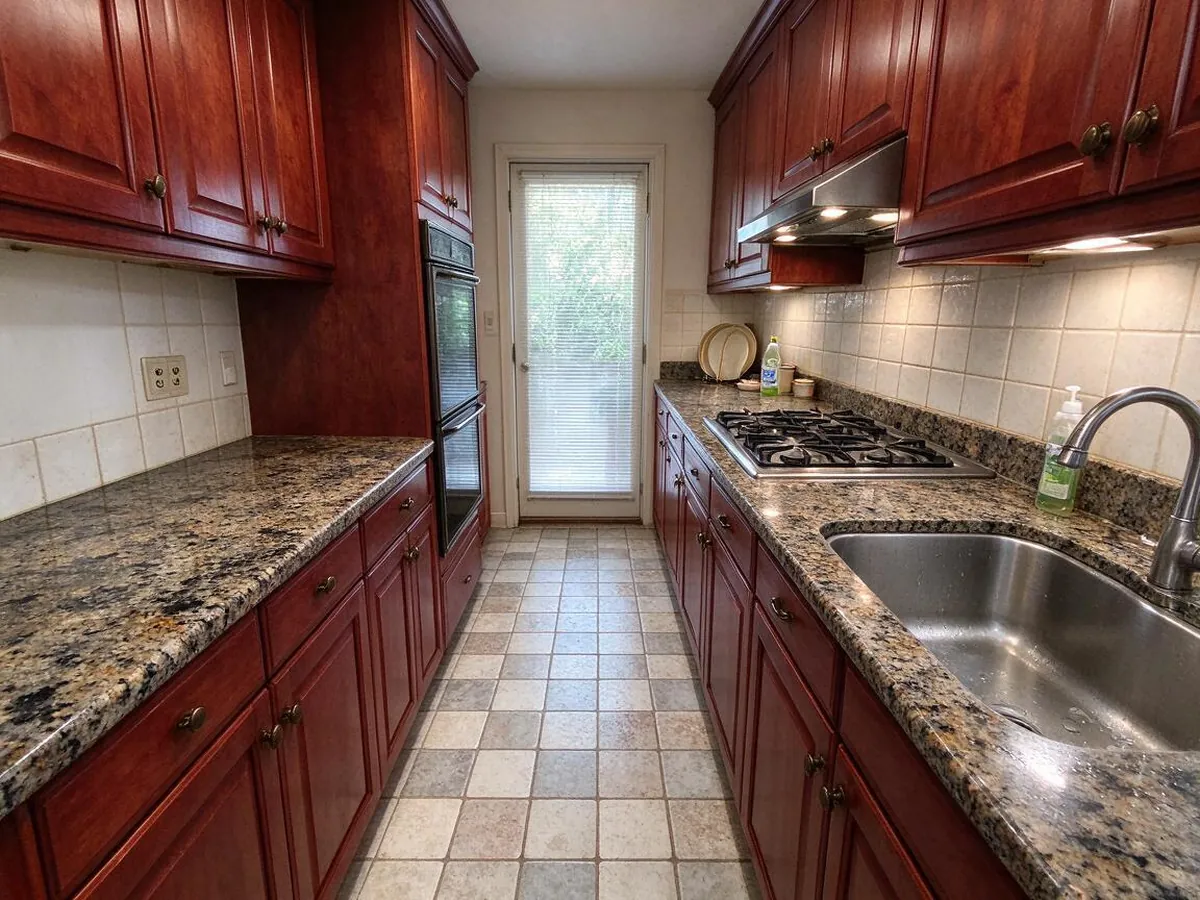
Quick answer: A kitchen cabinet color visualizer shows new cabinet colors on a photo of your own kitchen. On AI Kitchen Redesign the tool opens on "Change one thing → Cabinets": upload a photo, pick a color such as sage green, navy, matte black, natural white oak or two-tone, and only the cabinets change. Each preview uses one image, and your first one is free after Google sign-in.
Why test cabinet colors on your own photo?
Paint chips do not show your light, your floor or your countertop, and a color that looks calm in a catalog can look dark in a kitchen with one small window. Cabinets are also one of the larger line items: NerdWallet, citing Hanley Wood data, puts kitchen remodels at around $28,500 for a minor refresh and over $160,000 for a major upscale one [1].
A few previews on your own photo cost cents and show whether a color works with everything you are keeping.
Which cabinet colors can I try?
The presets are sage green shaker, navy blue shaker, matte black flat-panel, natural white oak flat-panel, warm white raised-panel and two-tone (navy lowers with white uppers). You can also type any color or finish, for example "matte forest green slab doors with brass handles".
Will it change my countertops or floor?
No. In this mode only the cabinet doors, drawer fronts and their color change. Counters, backsplash, floor, walls and the window stay as they are, so you are judging the cabinets alone.
When the cabinet color is settled, you can switch to the countertop or backsplash visualizer on the same photo, or run a full style redesign.
Sherwin-Williams or Benjamin Moore color visualizer, or an AI cabinet visualizer?
Paint brands have their own free tools. The Sherwin-Williams Color Visualizer paints a sample room or a photo you upload, and the Benjamin Moore Personal Color Viewer lets you upload a photo after logging in, then outline up to five surfaces by hand (desktop and large tablets only). Both are made to show that brand's paint colors.
An AI cabinet visualizer starts from your kitchen photo and finds the cabinets for you, so there is nothing to outline. It works on a phone, and you can describe any brand's color by name, a door style such as shaker or flat-panel, or wood instead of paint. Use it to shortlist a direction, then check the exact paint chip with the brand's tool or a real sample.
Tips for choosing a cabinet color
Try three colors in a row on the same photo and compare them side by side. Take the photo in daylight, because warm evening bulbs make every color look warmer. Use the preview to shortlist, then look at a real painted sample door in your kitchen before you order.
How do I use it? 3 simple steps
- 1
Upload a photo of your kitchen
Face the main cabinet wall in daylight so the doors are clearly visible.
- 2
Pick a cabinet color
Choose a preset such as sage green shaker, navy shaker, matte black, white oak or two-tone, or describe your own.
- 3
Compare colors on the same photo
Use the before/after slider, then try the next color. Each preview uses one image.
Frequently asked questions
Is this cabinet color visualizer tool free?
Yes, you can try it without paying. Sign in with Google and you get 3 free redesign images of your own photo, marked with a small watermark. No credit card is needed. It is one time and does not refresh every day. Beyond that, plans start at $14 a month for 25 images (or $144 a year), with no watermark, and you can cancel anytime from the billing page.
Is there a free app to change the color of my kitchen cabinets?
You do not need an app. This kitchen colour visualiser works in the browser on your phone or computer: upload a photo, pick a paint color or finish, and see your own cabinets repainted. Your first preview is free after Google sign-in, no credit card.
Can I see what painted cabinets would look like?
Yes. Pick a painted finish such as sage green, navy or warm white, or type the exact paint color you are considering, for example "Benjamin Moore Hale Navy satin". Use it to shortlist, then check a real painted sample before you start.
Can I change only my cabinets and keep everything else?
Yes. This page opens the tool on "Change one thing → Cabinets", so only the cabinet doors, drawer fronts and their color change. Counters, backsplash, floor, walls and the window stay exactly as they are in your photo.
Can I see two-tone cabinets?
Yes. Pick the two-tone preset (navy lowers, white uppers) or describe your own combination.
How many credits does one preview use?
Changing one material makes one image and uses one credit. A full style redesign makes two images and uses two. Sign in with Google and your first 3 images are free, with no credit card.
Will it keep my layout, walls and windows?
That is the whole point. Every request tells the AI to keep the original layout, walls, windows, doors and camera angle, and to change only surfaces, colors, fixtures and furniture. AI is not perfect, so we back it up: if a result moves a wall or window, tap "AI moved my walls or windows" under the image. We refund that image right away and redo it with stricter rules.
How accurate are the colors?
They are a visual preview that depends on your photo and its lighting. Confirm with a real paint sample or sample door before ordering.