How can I see new countertops on my kitchen before I buy?
Short answer: The quickest way is to upload a photo of your own kitchen to a tool that changes only the countertop, so you see the new material with your real cabinets, floor and light; then confirm the favorite with a physical sample or the actual slab in daylight. Here, the countertop target keeps everything else in the photo and returns the result in about 30 seconds, with the first 3 images free after Google sign-in.
What to know
Your own photo beats a showroom image
A counter looks different next to your specific cabinet color, floor and window light. Seeing it on your photo answers whether it fits; a catalog photo only shows whether it is pretty.
Describe it precisely
Type the color, pattern and finish, such as "honed black soapstone with light veins" or "white quartz with soft gray Calacatta veining". Vague words like "nice granite" give vague results.
Use a reference photo for a specific slab
If you photographed a slab at the yard, add it as a material reference so the result follows that pattern instead of a generic one.
Then check the real thing
An image cannot show texture, depth or exact color under your bulbs. Take a sample home, set it on the counter and look at it morning and evening before ordering.
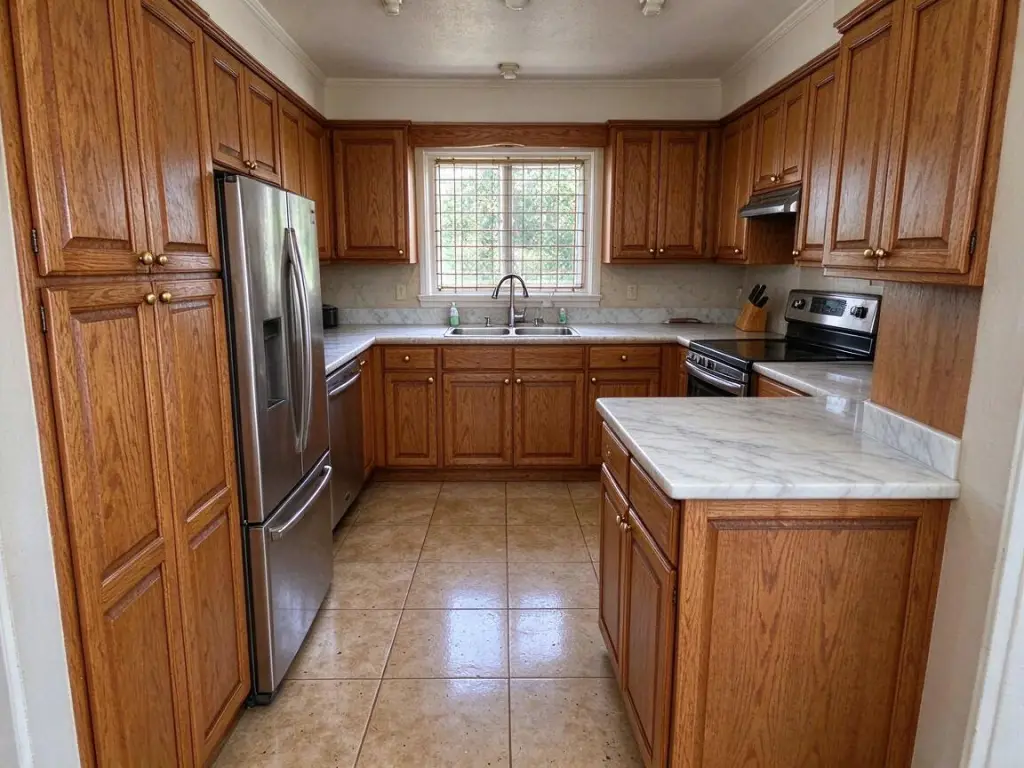
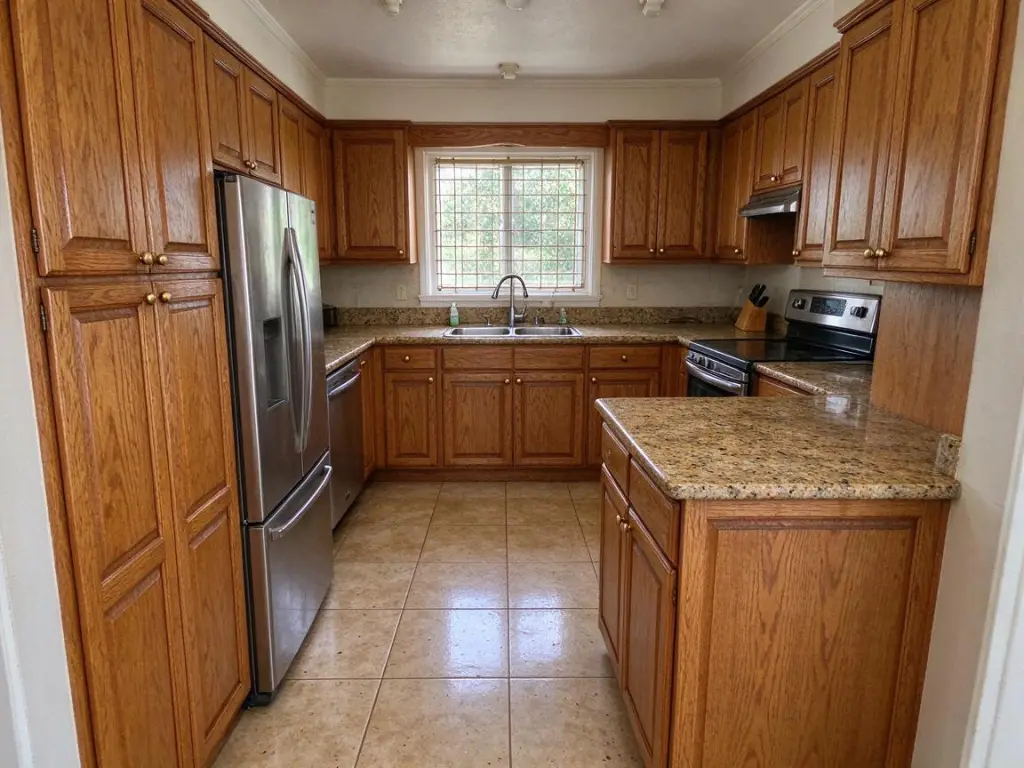 BeforeAfter
A simple way to compare options
Take one straight photo from the doorway in daylight, with the counters cleared. Run the countertop change three or four times with different materials, for example white quartz, black granite, butcher block and a concrete look, and keep each result.
Put the results side by side and narrow to two. If you are also changing the backsplash, change it on top of your favorite result so you see the pair together.
Remember what this does not do: the image does not measure your counters or price the job. For square footage and cost, use a fabricator quote or the kitchen remodel cost calculator.
How to see it on your own kitchen
- Take a straight photo of your kitchen in daylight from the doorway or a corner, then upload it below (iPhone photos work as they are).
- The tool opens on "Change one thing" with countertop selected. Pick a preset or type the exact countertop you have in mind.
- Sign in with Google: the first 3 images are free, no credit card. Plans start at $14 a month for 25 images.
- In about 30 seconds you get the same kitchen with only the countertop changed. Drag the slider to compare before and after, then download the one you like or keep editing one detail at a time.